Docs › Tasks and projects
Your tasks and your own lists
Everything assigned to you in one place, grouped by when it's due — plus private lists for the rest of life.
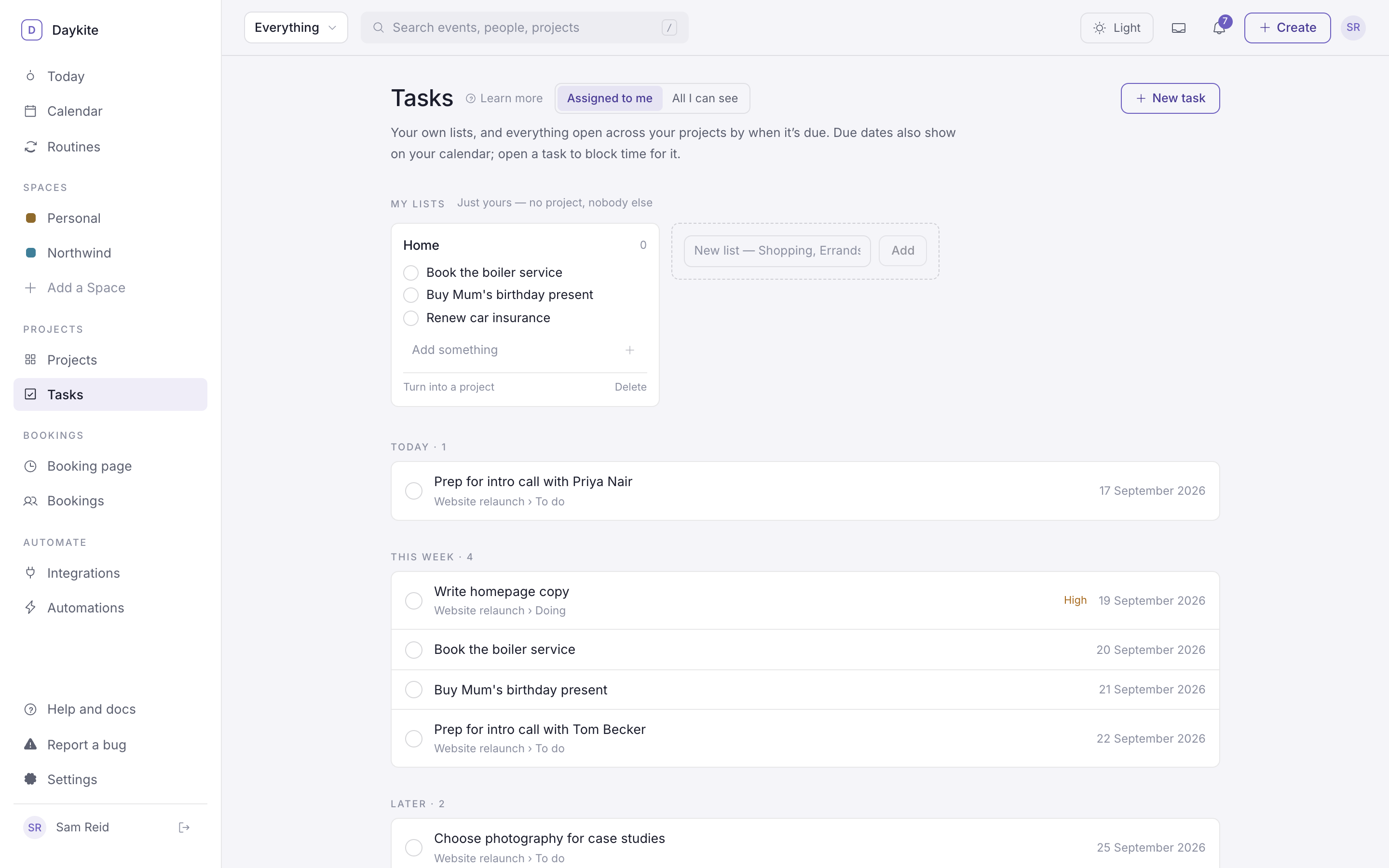
Tasks in the sidebar is your to-do list across every project: what's overdue, what's due today, this week, later, and what has no date yet.
What's on the page
- Assigned to me / All I can see — just your tasks, or every open task in projects you're part of.
- Tasks are grouped: Overdue, Today, This week, Later, No due date.
- Each row shows its project and list, its due date, and High for high-priority work.
- Tick the box to finish a task. Choose its title to open the task's page.
Add a task
Projects → New task, or Create → Task in the top bar, or ⌘ K → New task.
Fill in:
Field What it does Title What needs doing Where it goes One of your own lists, or a project (grouped by Space) List Which list in that project — To do, Doing… Priority Low, Normal or High Assigned to Anyone in the project — more than one person is fine Estimate How long it'll take. Used when you put the task on your calendar. Due date / Start date When it's due, and when you mean to start Description Notes, links, anything the task needs Choose Create task.
Your own lists
Below your tasks, My lists holds lists that are just yours — no project, no board, nobody else. A shopping list, errands, books to read.
- Type a name into New list — Shopping, Errands… and press Enter.
- Add items with Add something; tick them off as you go.
- Rename a list by double-clicking its name.
- Turn into a project — when a list grows up ("Move house" suddenly needs a mover, a budget and three people), this makes it a project in your Personal Space, tasks and all. Add people to it from there.
- Delete removes the list and everything in it.
Due dates on your calendar
Open tasks with a due date show as small chips in the all-day row of the calendar and on Today. Tick a chip to finish the task. Chips never count as busy time, so they don't block bookings or Find a time.
To hide them, untick Show due dates on the calendar in the calendar's Tasks panel. To actually set time aside for a task, see Tasks on your calendar.