Docs › Tasks and projects
Projects, boards and lists
Start a project, arrange its work on a board, and decide who's part of it.
A project is anything with more than a couple of steps — a website launch, moving house, a client engagement. It has its own people, a board of task lists, and a page for every task.
Start a project
- Projects → New project (or ⌘ K → New project).
- Give it a Name, choose its Space, and add a Description — what it's for, and what done looks like.
- Create project. It starts with one list, To do, and you as its lead.
The Projects page lists every project you're part of, grouped by Space, each with a progress bar, "4 open · 1 done", the next due date and who's in it. Use Active / Archived at the top to see archived projects.
Three ways to look at a project
| Tab | Shows | Good for |
|---|---|---|
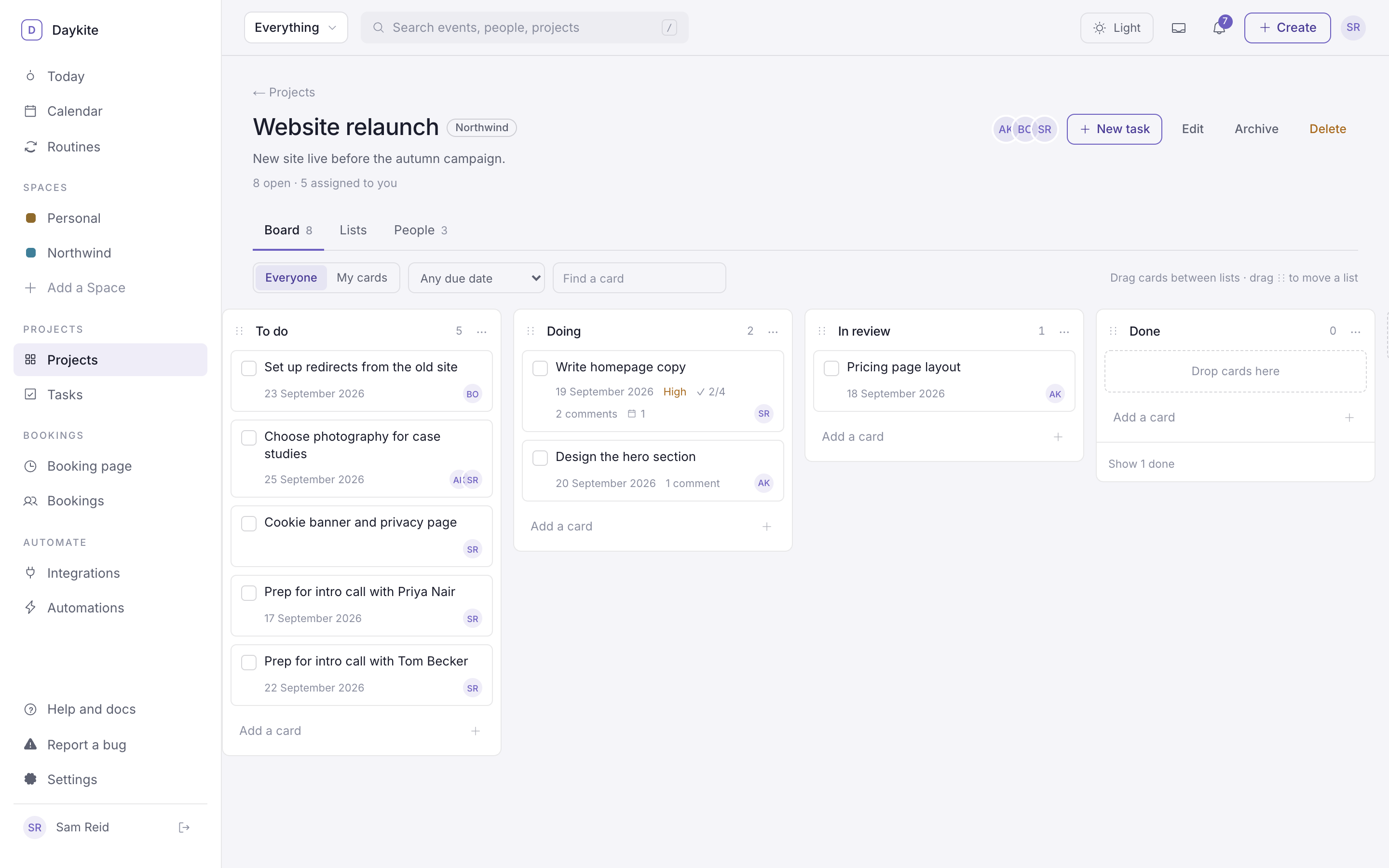
| Board | One column per list, cards you drag between them | Seeing work move — To do → Doing → Done |
| Lists | The same lists, one under another, as to-do lists | Long lists, quick ticking off |
| People | Who's in the project and what they can do | Adding and removing people |
Working on the board
- Add a card: type into Add a card at the bottom of a list and press Enter. Add details later on the task's page.
- Move a card: drag it within a list or to another list. It saves straight away; if the save fails, the card jumps back and the board says so.
- Add a list: type into Add a list — Doing, Review, Done… on the right.
- Reorder lists: drag a list by its ⋮⋮ handle.
- Rename or delete a list: its options menu. Deleting a list moves its cards to another list. A project always keeps at least one list.
- Finished cards fold away — Show 3 done at the bottom of a list brings them back.
Filters along the top narrow the board without changing anything: Everyone / My cards, a due-date filter (Overdue, Due within a week), and Find a card.
Each card shows at a glance:
- its assignees,
- the due date — Overdue · in amber when it's late,
- High for high priority,
- checklist progress (2/4), how many comments, and how many times it has been put on the calendar.
Who can see a project
A project is visible only to its people and to the owners and admins of its Space. Everyone else in the Space doesn't see it at all.
On the People tab:
- Add someone from the Space… → Add to project. People come from the Space; to add someone new, invite them to the Space first in Settings → People.
- Make lead / Make member — a lead can change the people, make others lead, and delete the project.
- Remove someone — they're unassigned from the project's tasks.
- Leave — you lose access unless you're a Space admin.
Only a project's people can be assigned its tasks or @mentioned in them.
Edit, archive or delete
At the top of a project:
- Edit — change the name and description.
- Archive — the project leaves the Projects list and its tasks stop cluttering yours. Find it under Archived and choose Restore to bring it back.
- Delete — the project and all its tasks, for good. Only a lead or Space admin can do this.