Docs › Bookings
Manage your bookings
See what's been booked, move a booking to a new time, cancel one, and export them all to Google Sheets.
Bookings in the sidebar lists every time someone has booked with you.
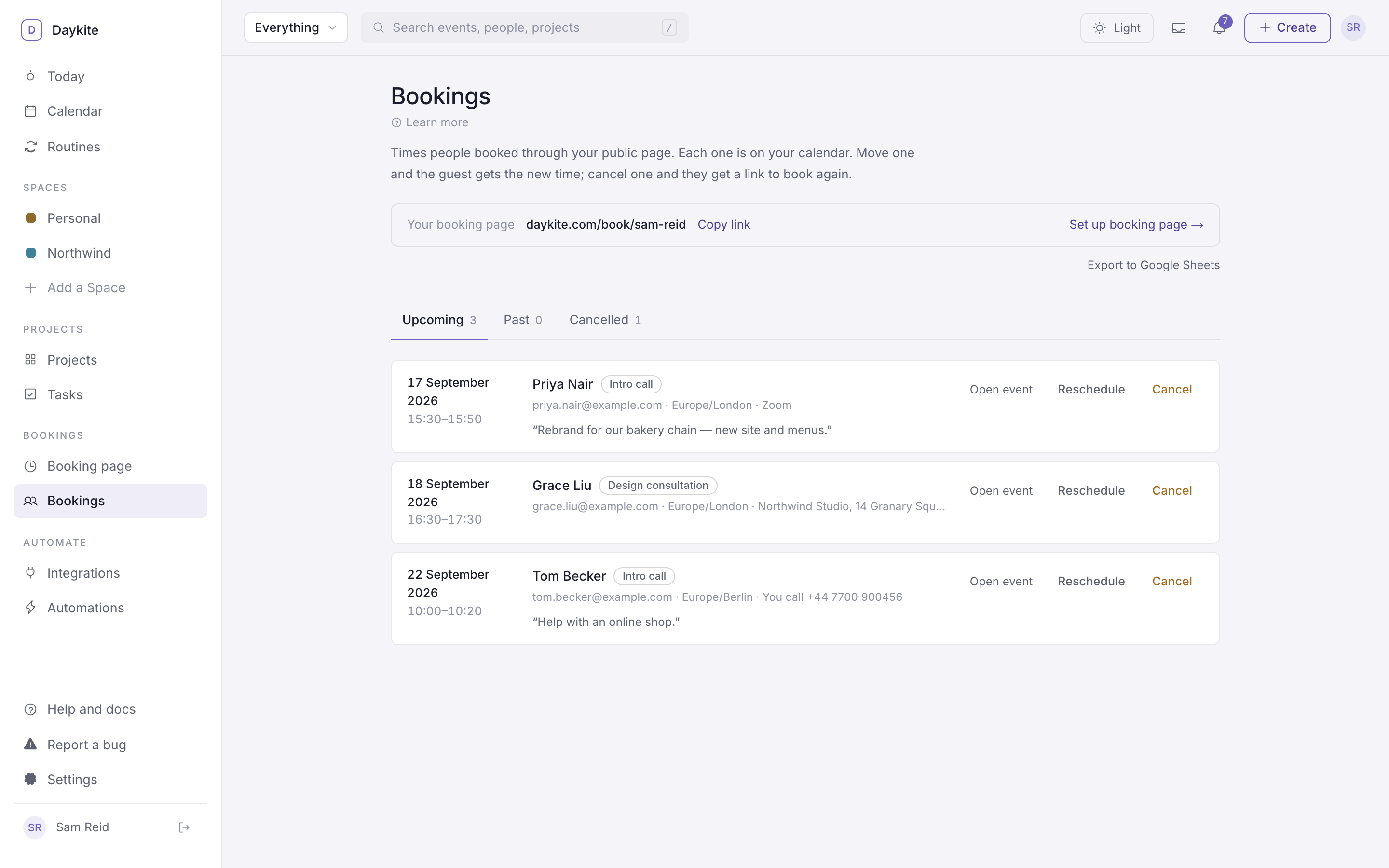
The list
Three tabs: Upcoming, Past and Cancelled, each with a count.
Each booking shows:
- the date and time, in your time zone,
- the guest's name and a tag for the meeting type,
- their email and time zone,
- how you'll meet — Zoom, You call +44 7700 900456, They call you, or the address,
- the first thing they wrote under What would you like to cover?
At the top, your booking page link with Copy link, and Set up booking page →.
Open the event
Open event goes to the booking's calendar event — where you can add notes, a guest, or a call link.
Move a booking
- Reschedule on the booking.
- Pick a day, then a time. Only times that work for this meeting type are offered, and the current time is marked.
- Optionally add a note — "Something came up — hope the new time works."
- Move booking and email guest.
The event moves on your calendar. The guest gets an email with the new time, your note, an updated calendar file that replaces the old entry, and a fresh Change or cancel link. A banner confirms: "Priya Nair is now on Friday 18 September at 10:30. They've been emailed the new time."
A Google Meet link made for the booking stays the same. Automations for A booking is moved to a new time run.
Cancel a booking
- Cancel on the booking.
- Optionally add a note — "Something came up — please pick another time."
- Cancel booking and email guest.
The event leaves your calendar and the booking moves to Cancelled. The guest gets an email with your note and a link to book again. Automations for A booking is cancelled run.
Export to Google Sheets
Export to Google Sheets (under your link) creates a new spreadsheet in your Google Drive with every booking — oldest first — and these columns:
Starts · Ends · Meeting type · Guest · Email · Guest's time zone · Status · Where · Phone · Answers · Booked
Times are written in your time zone as 2026-09-17 15:00, so they sort properly. Open the spreadsheet ↗ appears once
it's ready.
The export is a snapshot. To keep a sheet up to date as bookings come in, use an automation instead — the template Log bookings to Google Sheets on the Automations page sets one up. See Google Sheets.
If Google Sheets isn't connected yet, the button reads Connect Google Sheets to export.