Docs › Integrations
Google Calendar
Two-way sync — choose which Google calendars come in, which Space each belongs to, and what happens when both sides change.
Experimental. Integrations are still being tested. They may not run, or may give incomplete or wrong results — check anything important yourself, and tell us what goes wrong.
Connect Google Calendar and your Google events show up in Daykite; change something in Daykite and it shows up in Google.
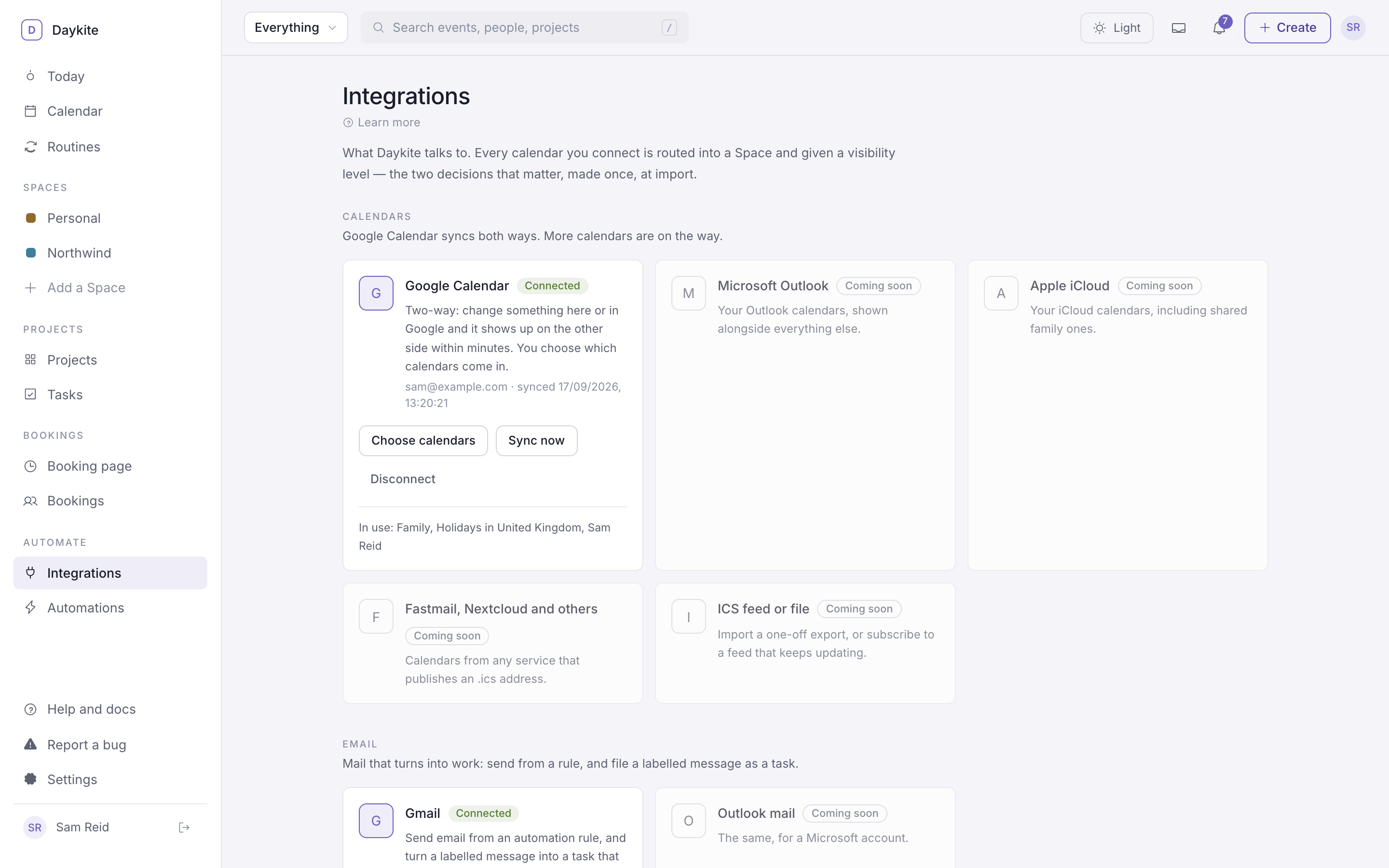
Connect
- Integrations → Google Calendar → Connect.
- Choose your Google account and approve on Google's screen.
- Back in Daykite, Choose calendars opens straight away.
Choose calendars
Every calendar on the Google account is listed — your own, shared ones, holidays.
- Switch each on or off. Your main calendar starts on.
- Pick the Space each belongs to. That decides who can see its events — see Spaces and privacy.
- Calendars Google only lets you read (public holidays, a colleague's shared calendar) are marked Read-only.
Save and sync. Reopen the picker any time with Choose calendars.
What syncs, and how fast
| Direction | When |
|---|---|
| Google → Daykite | When you connect, when you press Sync now, and every 10 minutes in the background. Only changes are fetched. |
| Daykite → Google | Events you create, edit, move or delete on a Google calendar reach Google within about a minute. That includes bookings and reschedules. |
- Repeating events go to Google as one repeating event. Changing or cancelling one occurrence changes that occurrence in Google, and the other way round.
- Guests aren't copied to Google, and Google is told not to send invitations — Daykite already emails guests, so they don't get two.
- Read-only calendars are never written to.
When both sides change the same event
If an event is changed in Google and in Daykite before they sync, Google's version wins. The event shows a note — "Changed in Google at the same time — kept Google's version" — so you can re-apply your change if you still want it. Nothing is silently merged.
Bookings in Google Calendar
On Booking page → Add new bookings to, choose a Google calendar. New bookings then appear in Google Calendar and move or disappear there when they're rescheduled or cancelled.
The card, at a glance
- In use: the calendars that are switched on.
- 2 changes on the way to Google — waiting to be sent, normally for seconds.
- 1 change couldn't reach Google — tried five times and gave up. Open the event: its note says why. Editing it again retries.
- Reconnect needed — Google stopped accepting the connection (you revoked it in your Google account, or your administrator did). Choose Reconnect.
Disconnect
Disconnect removes the connection and tells Google to forget Daykite's access. Events that came from Google leave your calendar; nothing in your Google account is deleted.
More from the same Google account
The same connection can also give you Gmail, Google Meet and Google Sheets. Each asks Google for its own permission only when you switch it on, and adding one never takes away another.