Docs › Getting started
A tour of the screen
The sidebar, the top bar, Today, the Inbox and notifications — where everything lives.
Every screen in Daykite has the same frame: a sidebar on the left for moving between parts of the app, and a top bar for the things you reach for constantly.
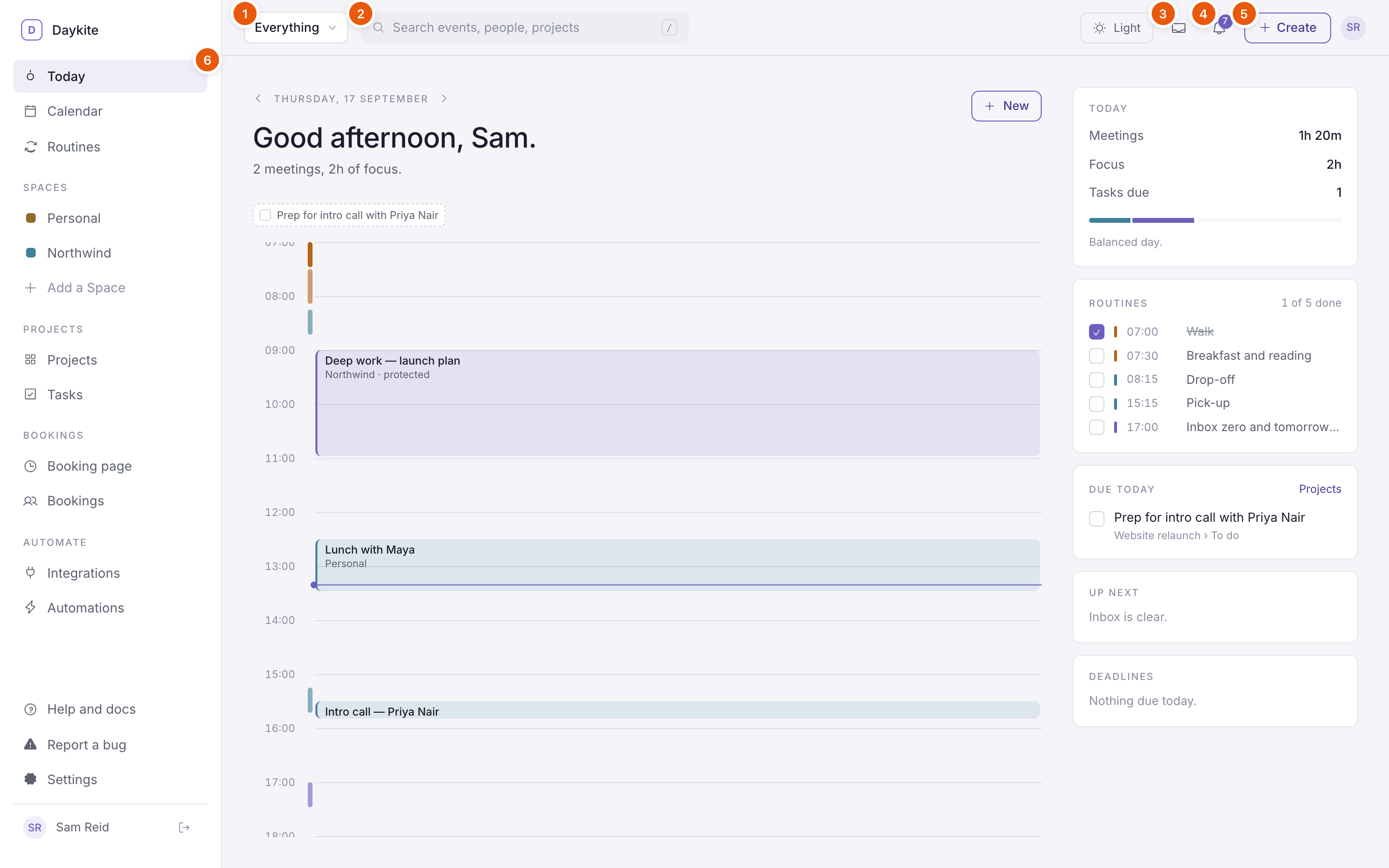
- Everything ▾ — narrow what you see to Work, Personal or one Space.
- Search — events, people, places and projects. Press / to jump straight to it.
- Inbox — invitations waiting for your answer.
- Notifications — reminders, changes, mentions and what your automations did. The number is how many you haven't read.
- Create — a new event, focus block, reminder or task.
- The sidebar — every part of Daykite, grouped by what it's for.
The sidebar
| Group | Item | What's there |
|---|---|---|
| — | Today | Your day at a glance. This is where Daykite opens. |
| — | Calendar | Day, week, month, agenda and year views |
| — | Routines | The recurring shape of your days |
| Spaces | Each of your Spaces | Opens the calendar narrowed to that Space. Add a Space makes a new one. |
| Projects | Projects | Shared boards with their own people |
| Projects | Tasks | Everything assigned to you, and your own lists |
| Bookings | Booking page | Your link, meeting types and availability |
| Bookings | Bookings | Times people have booked with you |
| Automate | Integrations | Google Calendar, Gmail, Google Meet and Google Sheets |
| Automate | Automations | Your "when this, do that" rules |
At the bottom: Help and docs (this site), Report a bug, Settings, and your name — choose it to edit your profile, or the arrow beside it to sign out.
Groups disappear when their feature is switched off — no Bookings module, no Bookings group. See Turn features on and off.
Today
Today is your morning briefing. On the left is the day's timeline with a greeting and a one-line summary — "3 meetings, 2h of focus." Tasks due today sit above the timeline as chips you can tick off.
On the right:
- Today — hours of meetings and focus, how many tasks are due, and a bar that fills as the day gets booked. It reads Balanced day or, once more than six hours are spoken for, Heavy day. Protect what's left.
- Routines — today's routine periods, each with a tick box. See Keeping a routine day to day.
- Due today — tasks due today from your projects and lists.
- Up next — invitations waiting for an answer.
- Deadlines — deadline flags on today.
Use the arrows beside the date to look at yesterday or tomorrow; they open that day in the calendar. New adds an event starting at the next quarter hour.
The Inbox
The Inbox (the tray icon in the top bar) holds invitations that need an answer. Reply without opening anything: Accept puts it on your calendar, Maybe marks it tentative, Decline tells the organiser you can't make it. When nothing is waiting you'll see Everything is handled.
Notifications
The bell collects everything else: reminders, changes to events you're in, cancellations, tasks due, mentions and comments, assignments, and automation runs. Unread ones have a dot. Show only unread, or mark them all as read, from the top of the list.
Which of these also reach your email is up to you — see Notifications.
The focus timer
When you start a focus session, a small timer floats in the bottom-right corner of every screen. It counts down, pauses, and — if you started it from a task — adds the time to that task when you stop. See Focus time and the timer.
On a phone
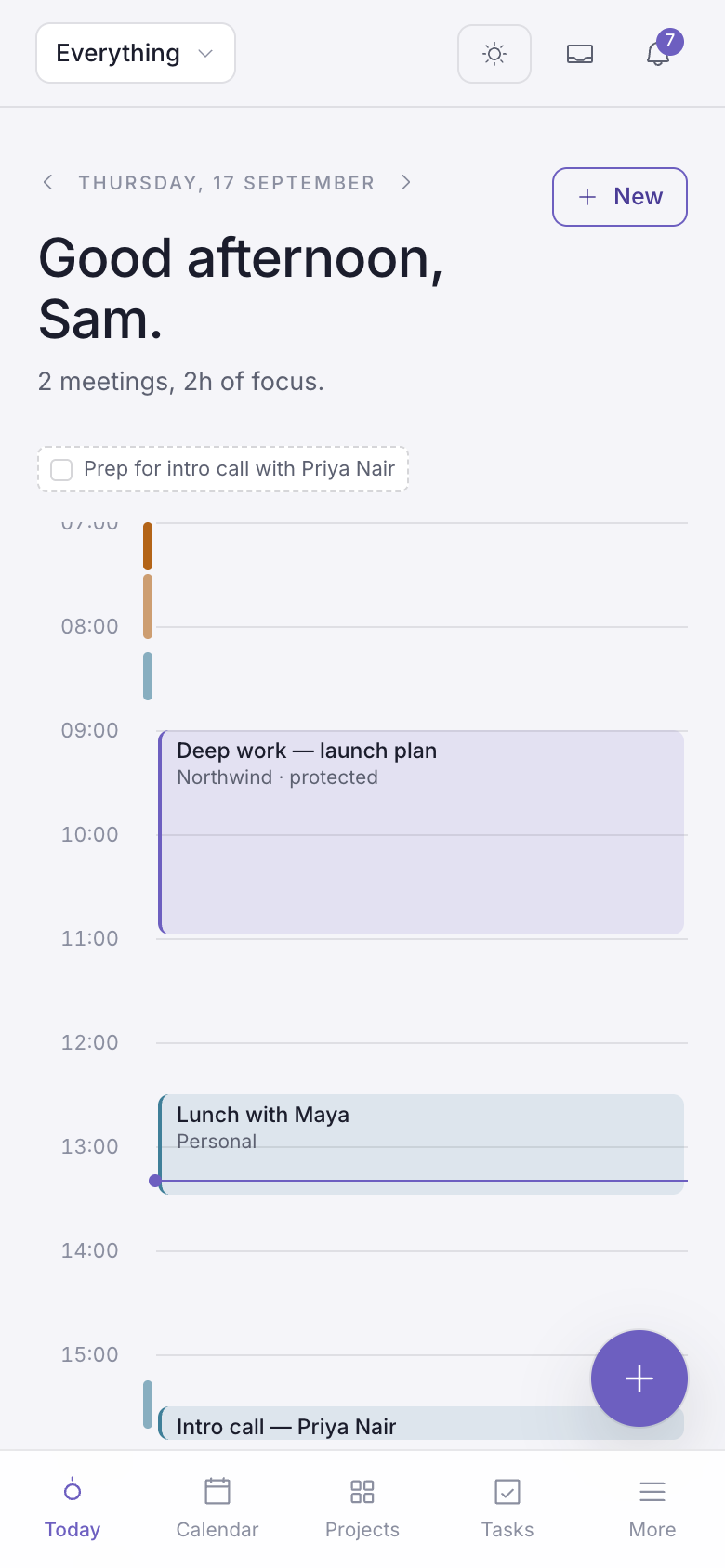
On a narrow screen the sidebar becomes a tab bar along the bottom: Today, Calendar, Projects, Tasks and More. More opens a sheet with everything else — your Spaces, Routines, Bookings, Integrations, Automations, Help, Settings and your profile.
The round + button above the tab bar does what Create does on a computer.