Docs › Routines
Create a routine
Name it, pick its days, and split it into periods.
Go to Routines in the sidebar and choose New routine (or press ⌘ K and type new routine).
Fill in the drawer:
Field What to put Name What you call this part of your day — Morning, Workday, Deep work Kind personal or work — it decides which group the routine sits in Colour The colour of its rail on the calendar Repeats on The days it runs. Tap a day to switch it on or off. Periods Each part of the routine: a name, a start and an end — and, under Add tasks and options, its tasks and how it may move Choose Add a period for each part. A new period starts where the last one ended, an hour long; adjust the times to fit.
Optionally, choose Add tasks and options under a period to give it tasks and smart options.
Choose Create routine.
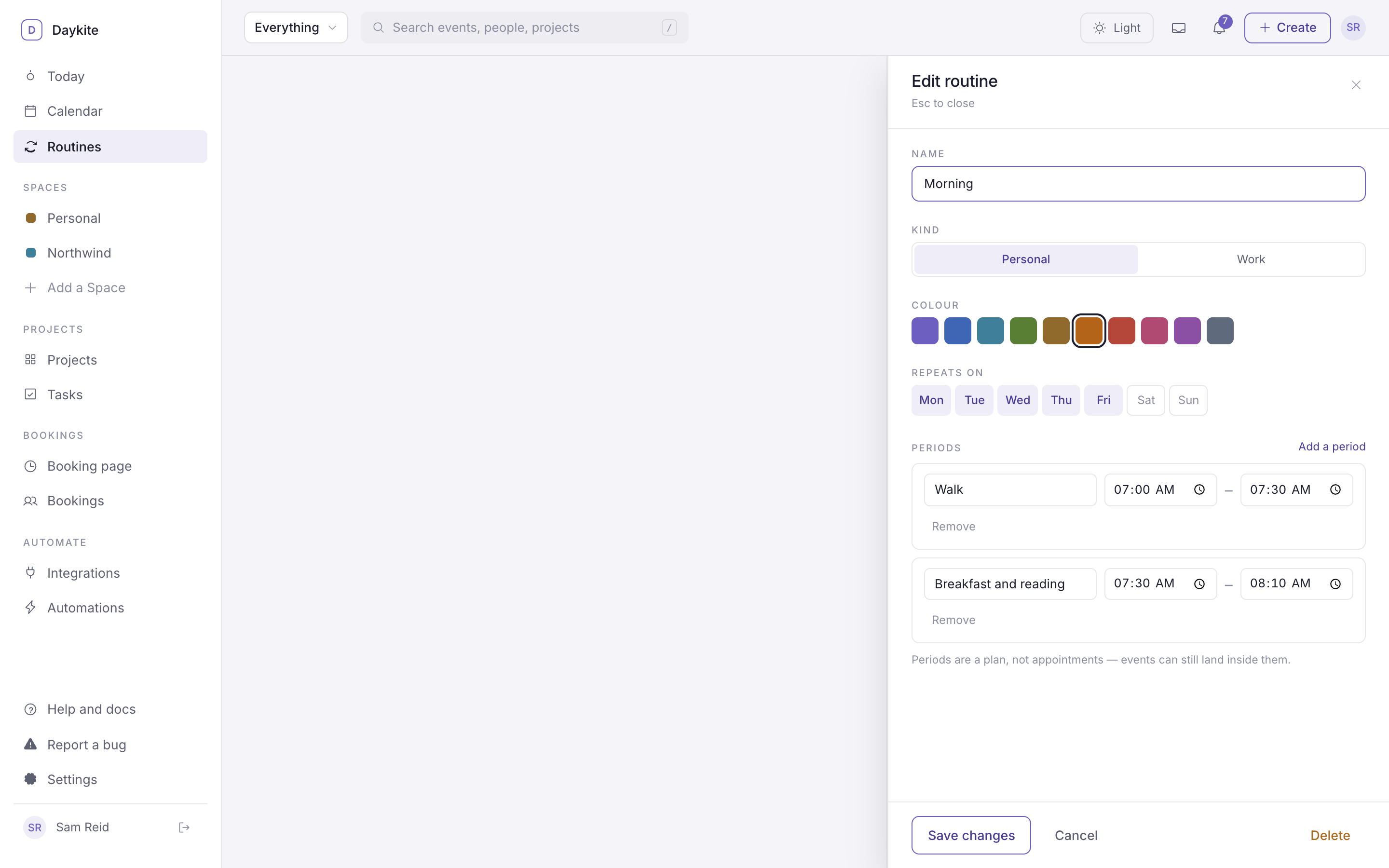
A routine needs at least one day and one period, every period needs a name, and each period has to end after it starts. Periods can overlap events — "Periods are a plan, not appointments."
Tasks in a period
A period can hold up to 20 tasks — the small things you do in it, like drink a glass of water or pick the top three tasks. Choose Add a task under the period, type it, and repeat. Each day, you tick them off on Today; ticking the last one marks the whole period done. See Tick off a period's tasks.
Renaming a task keeps what you've already ticked. Removing one removes its history.
Smart routines: when something clashes
Real days get in the way: a client call lands on your workout. Each period has three options that decide what happens:
| Option | What it does |
|---|---|
| Can move when something clashes | On by default. Daykite suggests another time that day when an event lands on the period. Switch it off for things that can't move, like the school run — you'll still be told about the clash. |
| Only between | The earliest start and latest end it may move to — a workout between 16:00 and 21:00. Without it, Daykite looks up to three hours either side, between 05:00 and 22:00. |
| Priority | Low, normal or high — how much the period matters to you. It's shown with the clash so you can decide what gives way. |
Suggestions never land on another event, another routine period, or outside the window, and they stay as close to the usual time as possible. Nothing moves until you say so — see When an event lands on a period.
Ask the assistant
Open the assistant and ask for one — "Create a morning routine", "Set up a gym routine on Mon, Wed and Fri at 6am", "Make a weekly review routine". It comes back as a card to confirm, already filled in with periods, a few tasks in each, and a sensible window to move within. It knows morning, evening, workout, start of workday, end of workday, weekly review and study routines; for anything else it asks the AI model, which adds tasks that fit. Confirm it, then change anything on the Routines page.
Examples
Edit, pause or delete a routine
- Edit — choose Edit on its card. Change anything and Save changes. Existing periods keep their done and skipped history, even if you rename them or change their times.
- Pause — choose Active on its card to switch it to Paused. A paused routine disappears from the calendar and Today until you switch it back. Handy for holidays.
- Delete — open it with Edit, then Delete. Its history goes with it, so pausing is usually the better choice.