Docs › Tasks and projects
Tasks on your calendar
See what's due where you plan your week, and set real time aside to do the work.
A due date says when it has to be done. A time block says when you'll do it. Daykite shows both.
Due dates: chips
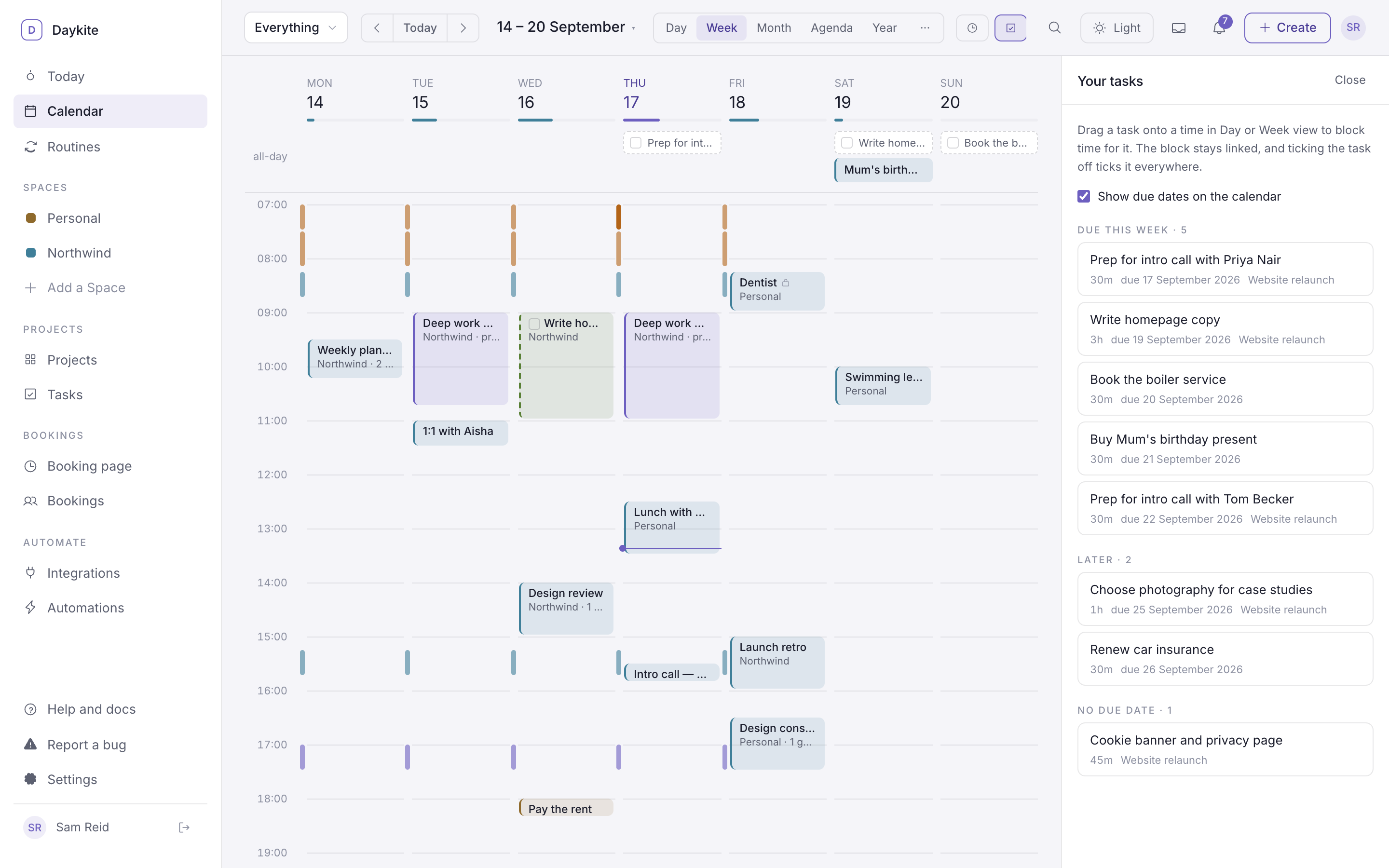
Open tasks assigned to you (and tasks in your own lists) appear as chips on the day they're due — in the all-day row of the Day and Week views, in the month grid, in Agenda, and above the timeline on Today.
- Tick a chip to finish the task.
- Choose the title to open the task.
- Chips never count as busy, so they don't block bookings, Find a time or anyone else's scheduling.
To hide them, open the Tasks panel on the calendar and untick Show due dates on the calendar.
Time blocks: three ways
1. Drag from the Tasks panel
- On the calendar, in Day or Week view, choose the tasks button in the toolbar. Your tasks opens beside the calendar, grouped into Overdue, Due this week, Later and No due date.
- Drag a task onto the grid. A dashed outline shows where it will land, as long as the task's estimate.
- Drop it. A task block appears, snapped to the quarter hour.
2. From the task's page
Under On the calendar, choose a day and a start time, then Add to calendar. The block is as long as what's left of the estimate.
3. From an event
Open any event you organised and pick the task under Task. The event now counts as time for that task.
How task blocks behave
- They show with a tick box on the calendar — tick it to finish the task, and it's ticked everywhere.
- They're linked: the task's page lists every block under On the calendar, with Unlink beside each.
- The length comes from the task's estimate minus the time already spent in focus sessions on it.
- Move or resize a block by dragging, like any event.