Docs › Bookings
Availability and working hours
Your working week, lunch and breaks — the hours your booking page, Find a time and Today's capacity all work from.
Booking page → Availability holds your working week. It decides:
- which times your booking page offers (unless a meeting type has custom hours),
- which windows Find a time suggests,
- what Today measures when it says a day is over capacity.
New accounts start with Monday–Friday, 09:00–18:00, with lunch 13:00–14:00. Times are in your own time zone, shown at the top.
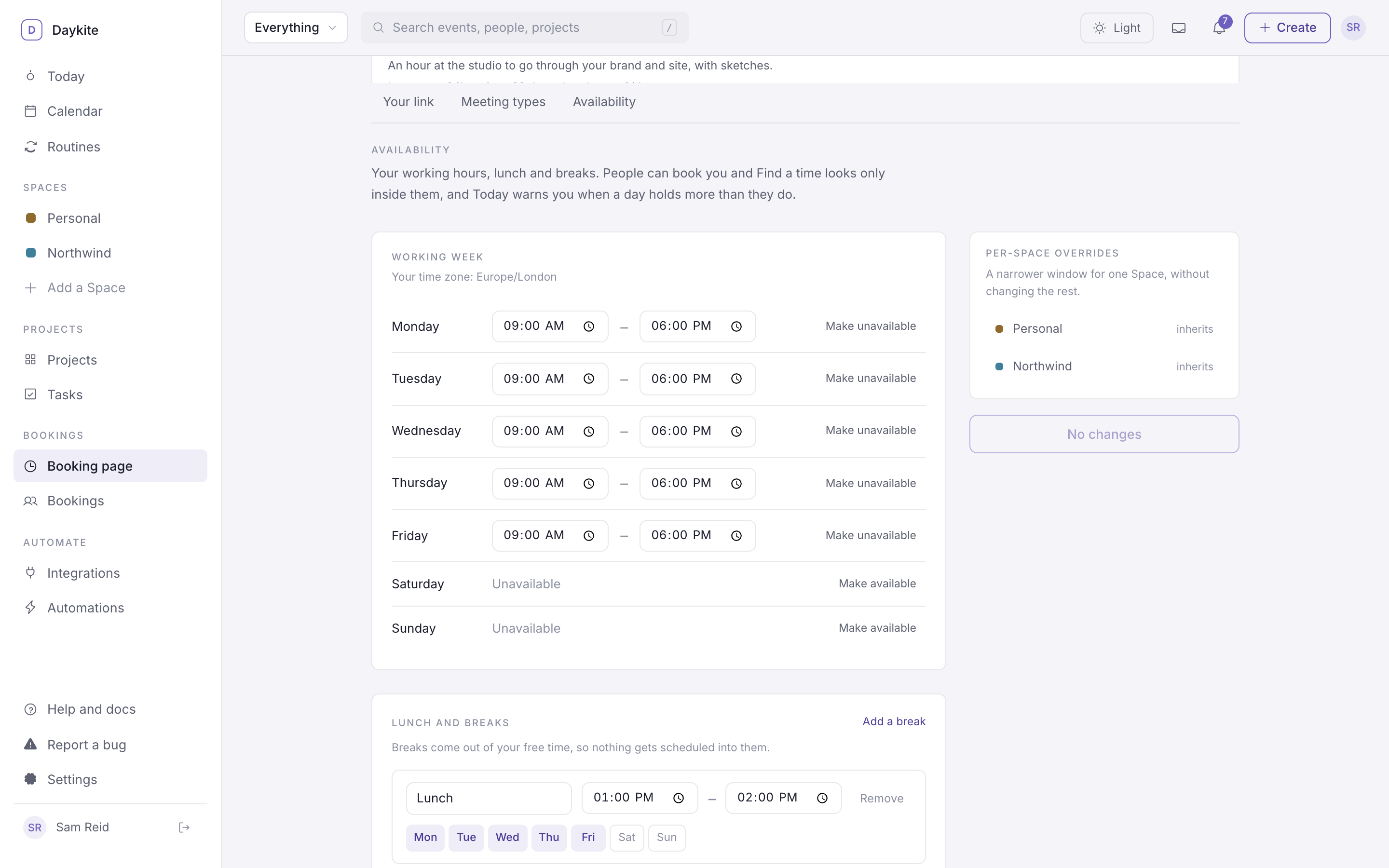
Working week
Each day has a start and end time. Make unavailable takes a day off entirely (it shows Unavailable); Make available brings it back with the usual hours.
Lunch and breaks
Breaks come out of your free time, so nothing is booked into them.
- Add a break.
- Name it — Lunch, School pick-up, Gym — and set its times.
- Tap the days it applies to.
Remove deletes a break. A break that applies on several days is one row, not five.
Choose Save working hours when you're done — changes aren't saved until then.
Per-Space overrides
With Spaces on, Per-Space overrides shows whether each Space follows your usual hours (inherits) or has a narrower window of its own (custom). A Space's holidays close the day for bookings in that Space — a guest who tries is told "Sam is away — Bank holiday." Holidays are set by a Space's owners and admins; see Spaces and privacy.
How a time becomes bookable
For a guest to be offered 14:00, all of these have to be true:
- It's inside your working hours — or the meeting type's own hours — and not in a break.
- Nothing on any of your calendars overlaps the meeting or the gap after it.
- It's further ahead than the type's minimum notice, and no further than bookable up to.
- The type hasn't reached its most per day for that date.
- It isn't a holiday in the meeting type's Space.
Offered times start on the hour and half hour, with up to 12 on a day.