Docs › Calendar
Views and moving around
Day, 3 days, week, work week, month, agenda and year — what each is good for, and how to get around quickly.
The calendar has seven views. They all show the same events; they just zoom in or out.
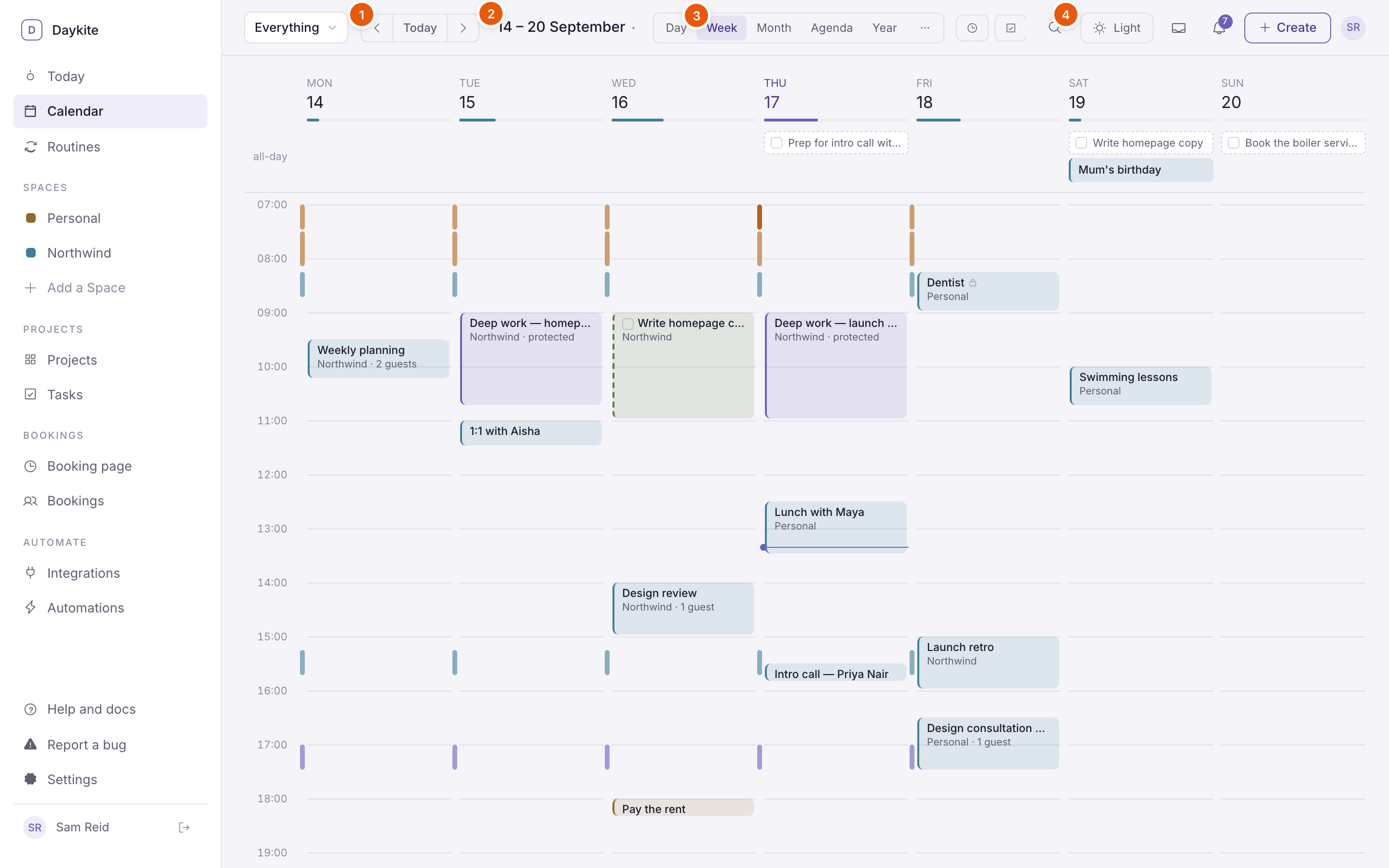
- ‹ Today › — step back or forward one period, or jump back to today.
- The date — choose it to open a small month and jump to any day.
- The view switcher — Day, Week, Month, Agenda, Year, and ··· for 3 days and Work week.
- Tools — start a focus session, open your tasks, or find a free time.
The views
| View | Shows | Good for |
|---|---|---|
| Day | One day in detail, with the tasks due that day | Running today; planning a packed day |
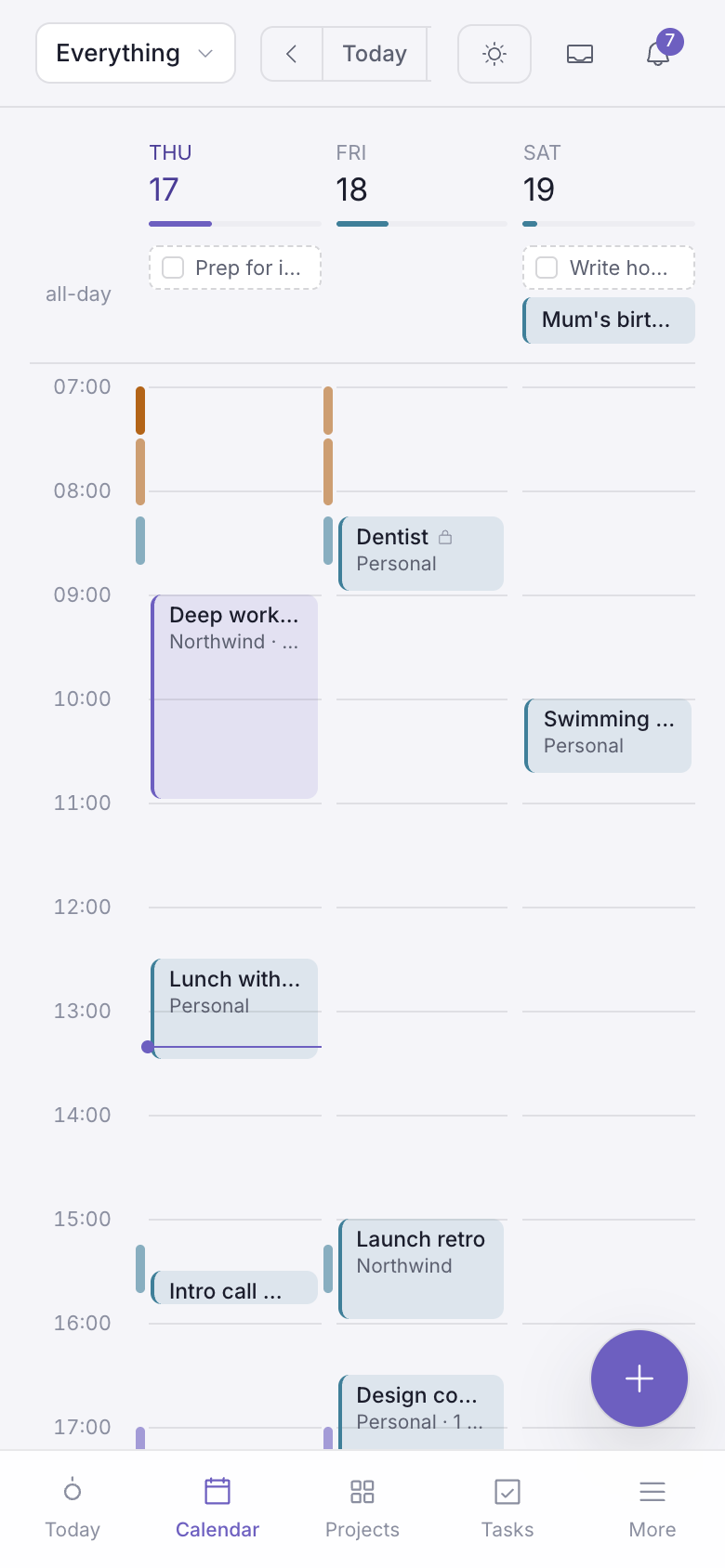
| 3 days | Today and the next two days | A phone or a narrow window |
| Week | Seven days side by side | Planning — the default |
| Work week | Monday to Friday | Work-only planning |
| Month | A grid of weeks, three items per day | Seeing what's coming up |
| Agenda | A list, one day after another | Scanning quickly, especially on a phone |
| Year | Twelve small months; a tinted day has something on it | Holidays, long projects, finding a free week |
The calendar opens in Week view unless you choose another in Calendar settings.
Reading the day and week views
- Events sit at their real times. Two events at the same time sit side by side.
- The all-day row at the top holds all-day events and chips for tasks due that day. Tick a chip to finish the task.
- The thin coloured bars just left of each day are your routines — see What a routine is.
- The small bar under each date in week view is that day's load: how much of a nine-hour working day is booked.
- A purple line marks now.
- Hours run from 07:00 to 21:00. If something starts earlier or finishes later, the grid grows to fit it.
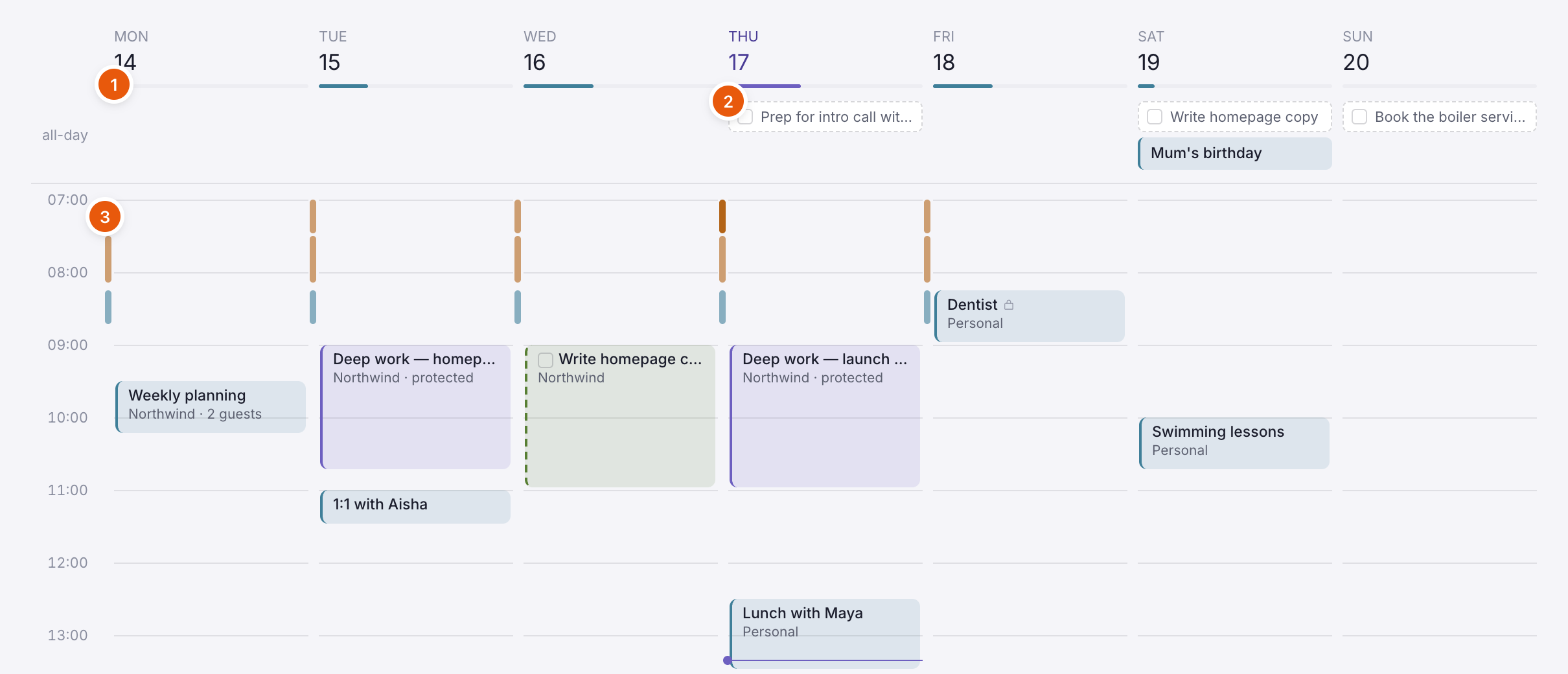
Each event block shows its title, and underneath its Space, protected for protected focus time, and how many guests it has. A padlock means the event is Busy only to others.
Moving around
| To… | Do this |
|---|---|
| Go back or forward a period | ‹ or ›, or press ← → |
| Come back to today | Today |
| Jump to a date | Choose the date label, then a day in the little month |
| Switch view | The switcher, or press D W M A |
| Open a day from the year view | Choose the day |
Showing less
- Everything ▾ (top left) narrows the calendar to Work, Personal, or one Space.
- When you narrow to one Space that has teams, a row of team chips appears under the top bar. Choose a team to see only events its members are in.
- To take a Space off your calendar altogether, go to Settings → Spaces and switch it from On calendar to Hidden.
- Settings → Appearance can hide weekends, hide the Space name on each event, and hide events you've declined.
Making changes right on the grid
In Day, Week and Today:
- Click an empty time to create a 30-minute event there, or drag down across the grid to create one exactly that long.
- Drag an event to move it — up and down to change the time, sideways to another day. It snaps to the quarter hour.
- Drag the bottom edge of an event to make it longer or shorter.
- Drag a task from the Tasks panel onto a time to block time for it — see Tasks on your calendar.
You can drag events you organised. Events other people invited you to stay where their organiser put them.