Docs › Bookings
What your guests see
The booking page from the other side — choosing a time, confirming, and moving or cancelling from the email.
Your guests don't need a Daykite account. Here's their side of it.
1. Choose what to book
On your main link, guests see your name and each live meeting type — its name, length, description and how you'll meet ("Zoom or Phone call"). A meeting type's own link skips this step.
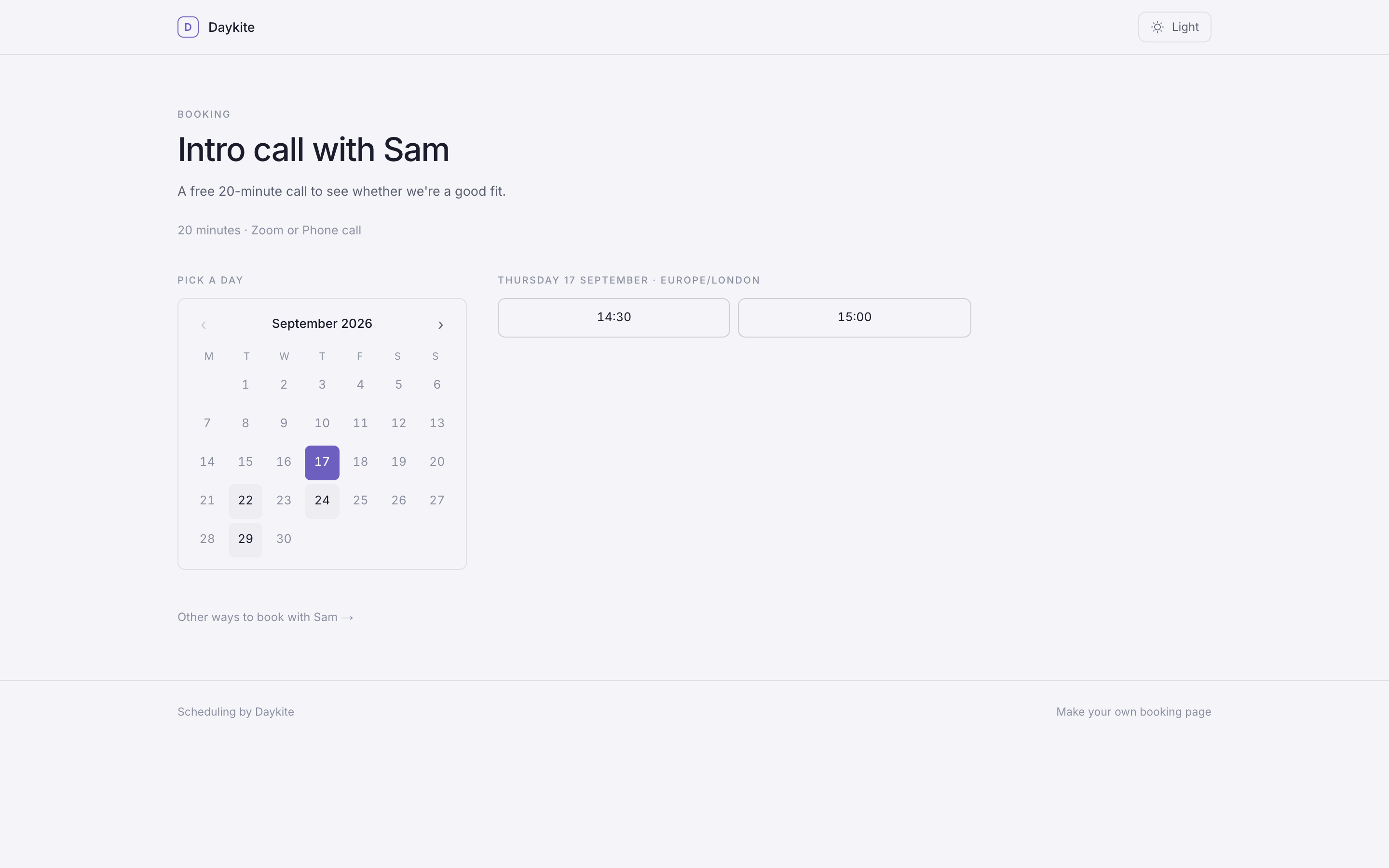
2. Pick a day, then a time
- A small month shows which days have free times; the others can't be picked.
- Choosing a day lists its times — in the guest's own time zone, named above the list (Europe/Berlin).
- Arrows move between months, within how far ahead the type can be booked.
Nothing else about your calendar is visible: no titles, no Spaces, no sign that other calendars exist.
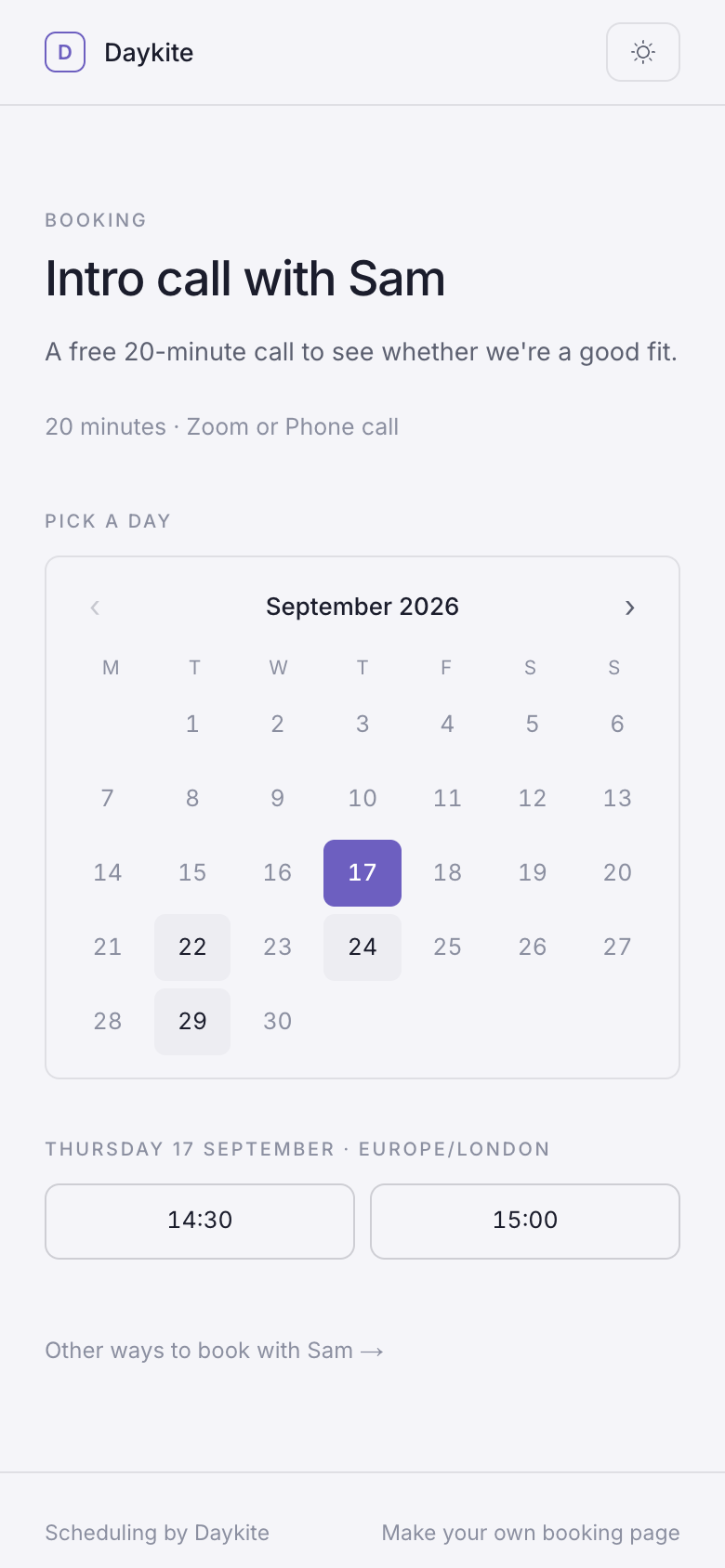
3. Confirm
The guest fills in:
- How would you like to meet? — when the type has more than one option.
- Your name and Email.
- Your phone number — only when you'll be calling them.
- What would you like to cover? — optional.
Confirm booking. If someone else took that time in the meantime, they're told "Someone just took that time. Pick another." and choose again.
The page then says "You're booked in." with the details — including the call link or phone number, now that the booking is made.
The confirmation email
- The meeting, your name, and the time in the guest's zone.
- How to join: Join the call for a video link, the phone number, or the address.
- A calendar file they can add to Google Calendar, Outlook or Apple Calendar.
- Change or cancel — their private link to manage the booking.
Moving or cancelling, from the guest's side
Change or cancel opens Your booking:
- Pick a new time shows the same day-then-time picker, with the current time marked so they don't pick it by mistake. Move my booking confirms. They get a fresh confirmation and an updated calendar file that replaces the old entry; you get a notification and an email with the old and new times. The page says "You're all set for the new time."
- Cancel booking lets them leave a note ("Something came up…"). You're notified and emailed, the event leaves your calendar, and the page says "This booking is cancelled."
The same rules apply as when booking: notice, how far ahead, your hours and the daily limit. Once a meeting has started, the link just says "This meeting has already started."