Docs › Spaces, people and organizations
Spaces and privacy
Keep work, clients and home apart — create Spaces, choose what each can see, and decide what's on your calendar.
A Space is a part of your life with its own people and its own privacy. Every event, project and booking belongs to one. See Welcome to Daykite for the idea in a nutshell.
Kinds of Space
| Kind | For | Others usually see |
|---|---|---|
| Personal | Your own life. Every account has exactly one, and it can't be shared. | — |
| A company | An employer or your own business | Your meetings in full; colleagues share the calendar |
| A client | Someone you work for | Meetings and deadlines, never your internal work |
| Family or personal | Home, a partner, a club | Kept out of work: work Spaces see only that the time is taken |
Add a Space
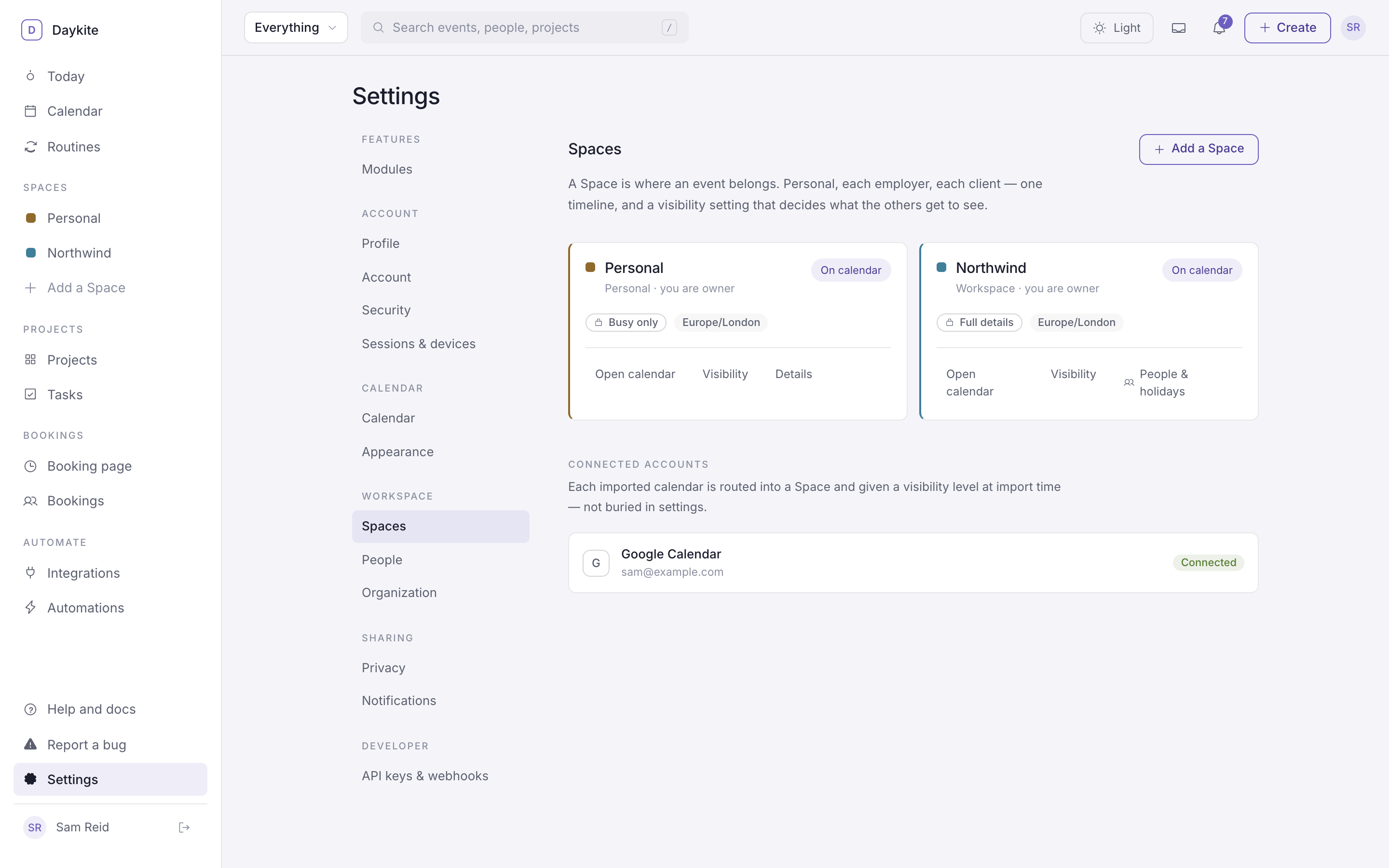
- Add a Space at the bottom of the Spaces list in the sidebar (or Settings → Spaces → Add a Space).
- Name — Northwind, Acme, Consulting.
- What is it? — a company, a client, or family or personal.
- Colour — how its events and label show.
- Time zone — useful for a client or team in another country.
- What others in this Space can see — Full details (they see event titles), Busy only (they see the time is taken), or Hidden (only you).
- Create Space.
Who sees what
Three settings decide what someone else sees of an event:
- The event's own Who can see it.
- The Space's default — set when you created it, changeable with Edit on the Space's page or Settings → Privacy.
- Your free/busy sharing in Settings → Privacy.
The strictest one wins. A Busy only event is busy-only even in a Full details Space.
What a Busy only event looks like to others: a grey Busy block, with no title, place, notes, guests or link. Opening it says "This hour is taken in another Space. You can see that it's busy — not what it holds."
On your calendar, or hidden
Each Space card has a switch: On calendar or Hidden. Hidden Spaces leave your calendar, Today and search until you switch them back — handy when you're off for a week from one client. Hiding doesn't change what anyone else sees.
To just look at one Space for a moment, use Everything ▾ in the top bar instead.
A Space's own page
Each Space card has Open calendar (the calendar, narrowed to that Space), Visibility (Settings → Privacy) and People & holidays, which opens the Space's own page:
- People — who's in it and their roles. See Invite people to a Space.
- Teams — groups for filtering the calendar.
- Holidays — days the Space is closed (Eid, company offsite, shutdown). Bookings for this Space's meeting types aren't offered on them.
- Resources — rooms and equipment that can be added to events in this Space, so two meetings can't book the same room. Retire one you no longer use.
- Share this calendar — a read-only link anyone can open without an account: Full details or Busy only.
- Edit — name, kind, colour, what others see, time zone.
- Delete this Space (owner) — removes it and its calendar for everyone. Leave this Space (anyone else) — you stop seeing it; an admin can invite you back.
Connected accounts
Settings → Spaces also lists your connected calendar accounts. Which of their calendars go into which Space is chosen in the calendar picker — see Google Calendar.