Docs › Calendar
Edit, share and cancel events
Change an event, answer an invitation, share a link to it, or turn it into a task.
Choose any event on the calendar to open it in a drawer on the right. What you can do depends on whether you organised it or were invited.
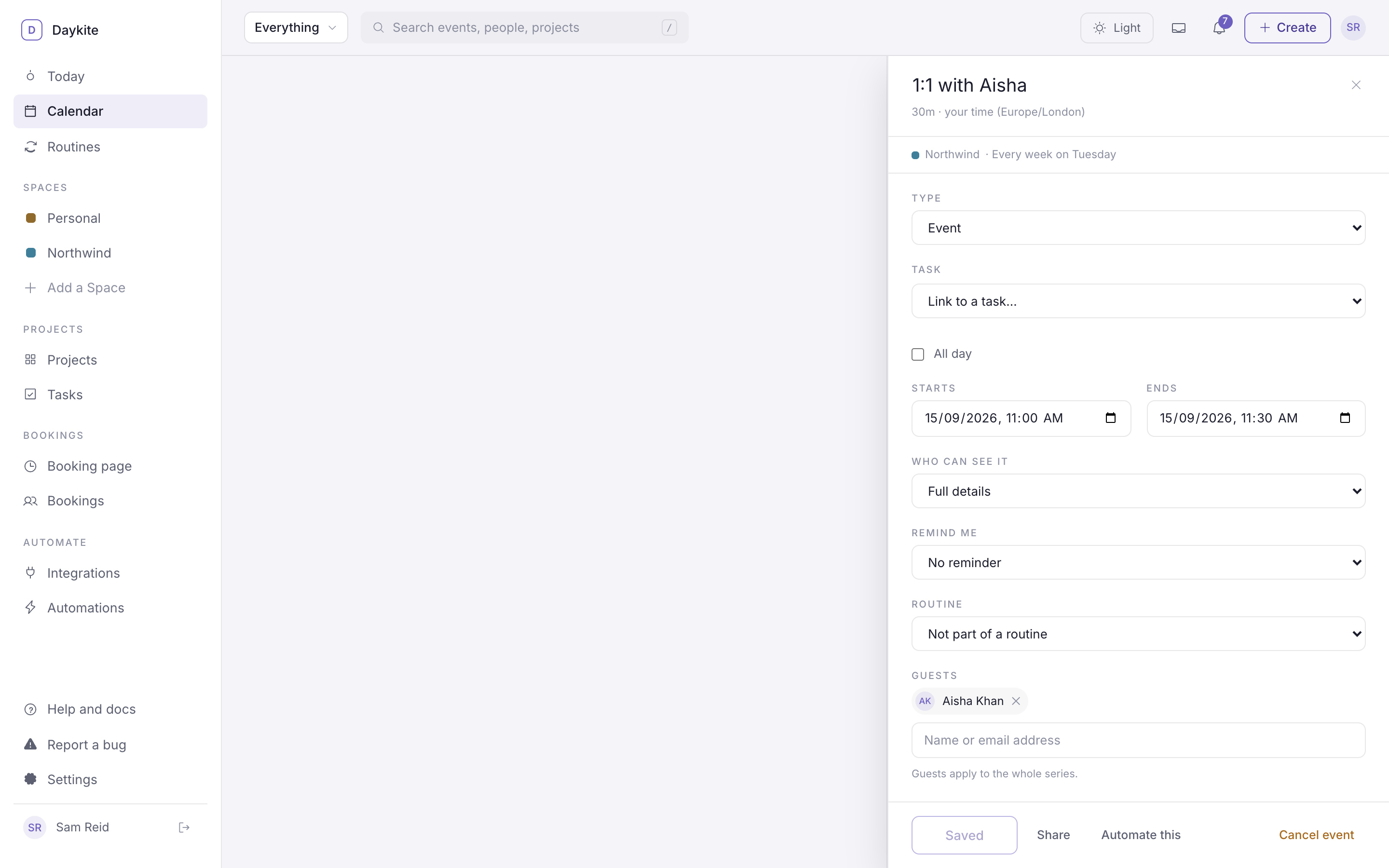
Events you organised
Everything is editable in place — the title at the top, then the same fields as when you created it, plus:
- Type — switch between Event, Focus and Reminder. Switching to Task converts it (see below).
- Task — link the event to an open task in the same Space. The block then counts towards that task.
- Protect this time — keep meetings out of it — makes any event behave like protected focus time.
The button at the bottom reads Saved until you change something, then Save changes. Discard throws your changes away.
You can also move an event by dragging it on the calendar, or change its length by dragging its bottom edge.
Guests and replies
Add or remove people under Guests. New guests get an invitation; people with a Daykite account see it in their Inbox. For a repeating event, guests apply to the whole series.
Cancel an event
Choose Cancel event. It leaves your calendar and the calendars of guests who use Daykite. For a repeating event you'll be asked which ones — see Repeating events.
Events you were invited to
The drawer shows the details instead of a form:
- Your answer — Going, Maybe or Can't make it. Change it any time; the organiser gets a notification.
- Guests — who's coming, with each person's reply and "2 of 3 replied".
- Notes, the place, and Join the call if there's a link.
- Who can see it — "Visible to everyone in Northwind" or "Shows as Busy outside Northwind".
Only the organiser can change an invited event.
Share a link to an event
To show an event to someone who doesn't use Daykite:
- Open the event and choose Share.
- Choose what the link shows: Full details, or Busy only (just the time).
- Choose Create link & copy. The link is on your clipboard.
Anyone with the link can see the event without signing in. Choose Revoke beside a link to switch it off. For a repeating event, the link shares the whole series.
Turn an event into a task
Sometimes a "meeting" turns out to be work you need to do. Change Type to Task and choose Convert. The event becomes a task, due that day, in its Space's General project, and you're taken to the task.
Make an automation from an event
Automate this starts a new automation — when an event is created in this Space with this title, notify me — and opens it in the builder, switched off, for you to change what should happen. See How automations work.