Docs › Routines
Keeping a routine day to day
Tick periods and their tasks off, skip one, move one for a single day, handle clashes, and link events to a routine.
A routine is a plan; real days don't always follow it. Daykite lets you record what actually happened without changing the routine itself.
Mark a period done
Either:
- On Today, tick the period in the Routines card, or
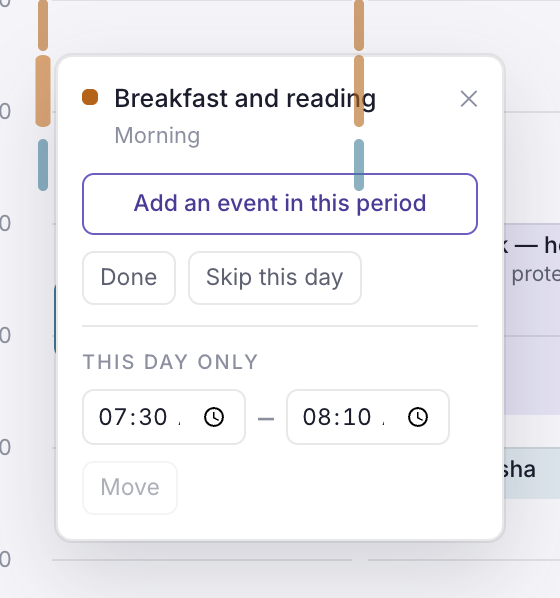
- On the calendar, choose the period's rail and then Done.
The rail turns solid, and the Routines page shows "1 of 2 done today". Choose Undo done to take it back.
Tick off a period's tasks
When a period has tasks, its row in Today's Routines card shows how many are done, like 1/3. Choose it to open the list and tick each task as you go. Ticking the last one marks the period done; unticking one takes that back. Ticks are for that day only, so tomorrow starts fresh.
On My Day, each routine row shows the same count — 2/3 tasks.
When an event lands on a period
If an event overlaps a period that can move, Today's Routines card says so under the period — "Clashes with Client call. Move it to 19:00?":
- Move to 19:00 moves the period for that day only, just like moving it yourself.
- Keep leaves it where it is and hides the suggestion.
A period that can't move, or has no free time left in its window, still shows the clash so you can decide. Events you've linked to the period, all-day events and invitations you haven't answered don't count as clashes.
To deal with the whole week at once, ask the assistant — tap Fix routine clashes, or ask "Do any of my routines clash this week?". You get one card per clash to confirm.
Skip a period for a day
Choose the period's rail on the calendar, then Skip this day. The rail fades and Today shows it as skipped. Choose Undo skip to bring it back.
Skipping is different from pausing: it's one period on one day. See Edit, pause or delete a routine for time off.
Move a period for one day
The dentist is at 07:15, so the walk moves to lunchtime — just for today.
- Choose the Walk rail on the calendar.
- Under This day only, set the new start and end — 12:30 to 13:00.
- Choose Move.
The rail moves on that day only; the popover now says "Morning · moved for this day". Every other day keeps 07:00. Choose Back to usual time to undo it.
Link an event to a routine period
Sometimes an event is part of your routine — a run club on Wednesday mornings, a weekly planning call at wind-down time. Linking it says so.
From the routine: choose the period's rail, then Add an event in this period. The event form opens with that day and time filled in, already linked.
From an event: in the event form, open Routine and choose the period. That day's periods are listed first, then all the others — "Morning → Walk (07:00–07:30)". Choose Use its time to move the event onto the period's hours.
If an event overlaps a routine period without being linked, the form mentions it — "Overlaps your Walk routine time" — so you can decide.
Let an automation react
Marking a period done or skipped can start an automation. A couple of ideas:
- Walk is skipped → create an event "Lunchtime walk" today at 12:30 for 30 minutes.
- Any period of Wind down is done → notify me: "Nice — that's the day wrapped."
See Automation recipes.