Docs › Calendar
Create events, focus time and reminders
One form for anything with a time — type it in plain English or fill in the fields.
Everything you add goes through one form. Open it any of these ways:
- Create in the top bar (or the round + on a phone), then Event
- Press C
- Click an empty time on the calendar, or drag down to pick a length
- New on Today
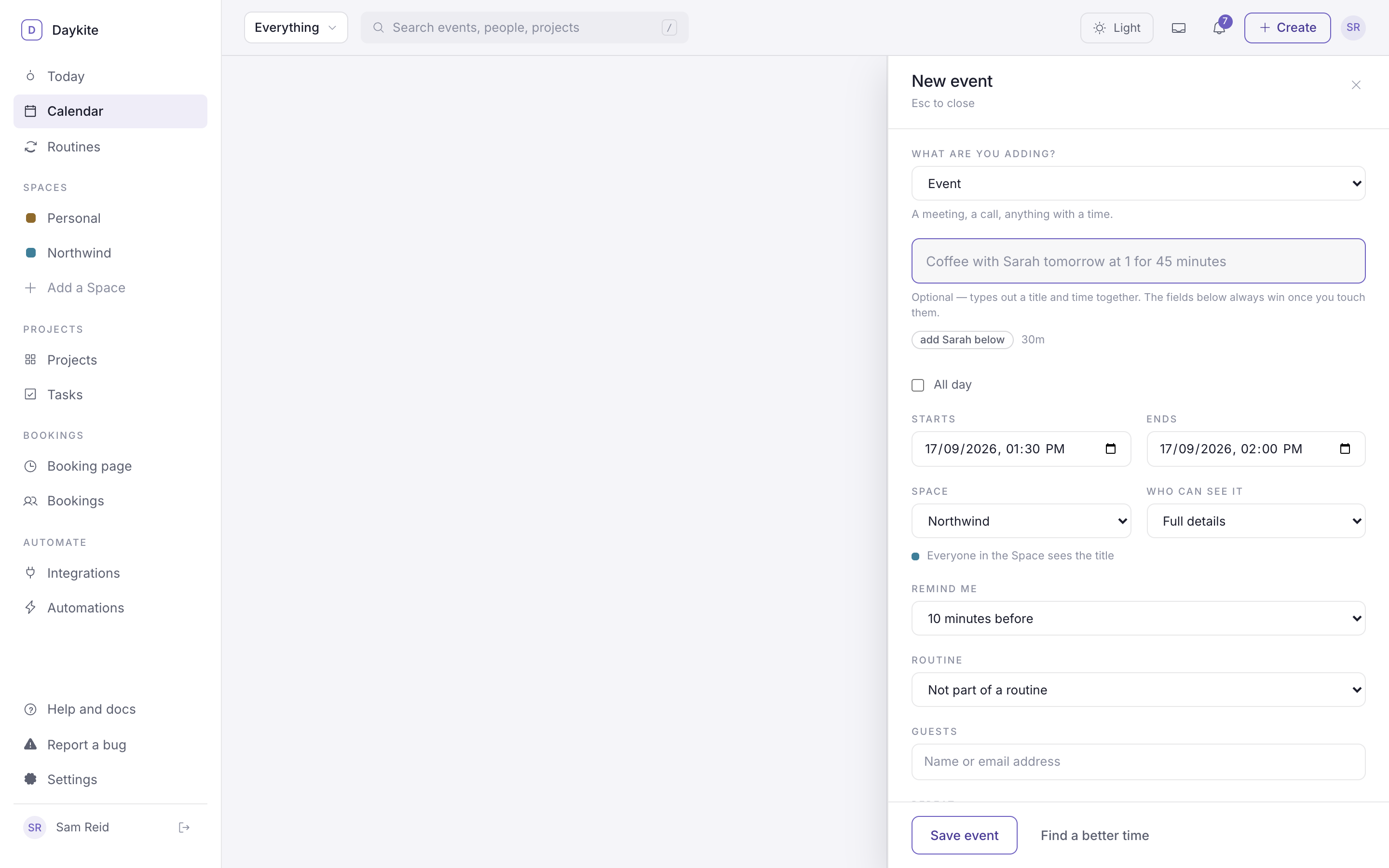
1. Choose what you're adding
What are you adding? picks the type. Each type has its own colour, and picking one sets its usual length until you change the times yourself.
| Type | Use it for | Different because… |
|---|---|---|
| Meeting | Time with other people | Can have guests, a place and a call link |
| Appointment | The dentist, a haircut, a viewing | Starts at an hour long |
| Focus | Time to get work done | Protected: invitations that land inside it are declined for you, and others see it as Busy only unless you change that |
| Personal | Birthdays, plans, reminders — pay the rent, call the bank | Shown in its own colour so it doesn't read as a meeting |
| Travel | Flights, drives, commutes | Doesn't count as meeting time in your week's load |
| Break | Lunch, a walk | Doesn't count as meeting time |
| Buffer | Breathing room before or after something | 15 minutes to start with |
| Deadline | When something is due | Its own colour, so it stands out |
| Your types | Anything you made in Settings → Appearance → Your event types | Its own colour; behaves like the type it's based on |
| Task | Work in a list or project, with a due date | Creates a real task instead of a calendar event — see Your tasks |
You can change an event's type later from its page.
Your own types
In Settings → Appearance → Your event types, add a type with a name, a colour, the built-in type it behaves like, and a usual length. A Client call type based on Meeting gets guests and a call link; a Deep work type based on Focus protects its time. Deleting a type keeps its events — they just go back to the colour of the type they were based on.
2. Type it, or fill it in
The first box takes a plain-English line and fills in the title, day, time and length as you type:
| You type | Daykite understands |
|---|---|
Coffee with Sarah tomorrow at 1 for 45 minutes |
Coffee with Sarah, tomorrow 13:00–13:45 |
Design review on Friday at 2pm for 1 hour |
Design review, this Friday 14:00–15:00 |
Dentist next Tuesday at 8:15 |
Dentist, next Tuesday 08:15–08:45 |
Focus on the homepage today at 10 for 2 hours |
Focus on the homepage, today 10:00–12:00 |
A few things it knows:
- Days: today, tomorrow, a weekday (Friday means the next one), next Tuesday.
- Times: at 9, at 13:30, at 2pm. A bare at 1 to at 7 means the afternoon — nobody books 01:00.
- Length: for 45 minutes, for 1 hour, for 2h. Without one, it's 30 minutes.
- People: with Sarah or with Sarah and Ahmed goes into the title, and a hint reminds you to add them as guests below.
The line is optional. Once you change a date or time field yourself, the fields win and typing no longer overwrites them.
3. The details
| Field | What it does |
|---|---|
| All day | No times — the event sits in the all-day row. Choose the first and last day. |
| Starts / Ends | In your time zone. The length shows under the plain-English line. |
| Space | Where the event belongs, which decides who can see it. Starts on the Space you're looking at, or your default Space. |
| Who can see it | Full details (everyone in the Space sees the title), Busy only (others see the time is taken, nothing more) or Hidden (only you). |
| Remind me | From When it starts to 1 week before. The default comes from Notifications settings. |
| Routine | Link the event to a routine period, like Morning → Walk. See Link events to a routine. |
| Guests | People you share a Space with, or any email address typed in full |
| Repeat | See Repeating events |
Choose More — place, call link and notes for the rest:
| Field | What it does |
|---|---|
| Place | An address or room name |
| Call link | A Zoom, Google Meet or Teams link. Pasting meet.google.com/abc-defg-hij without https:// is fine. Guests see a Join the call link. |
| Notes | Anything guests should know |
| Buffer around it | Breathing room before and after, so nothing gets booked right up against it. Space default uses the Space's setting. |
| Rooms and equipment | Book a meeting room or projector, if your Space has them set up |
Choose Save event.
What guests get
- Guests with a Daykite account get the invitation in their Inbox and the time shows as busy on their calendar. They also get an email, unless they've turned invitation emails off.
- Anyone else gets an email with a calendar file they can add to Google Calendar, Outlook or Apple Calendar.
When you're already busy
If the new event overlaps something already on your calendar (including its buffer), Daykite stops and tells you:
You're already busy — Design review.
You can Move to the free slot right after, Keep anyway to save the overlap on purpose, or Find a better time to look for a gap. See Find a time.