Docs › Tasks and projects
A task's page
Notes, a checklist, several assignees, discussion with @mentions, files, related tasks and history — all on one page.
Every task has a page of its own. Open one by choosing a card on a board, a row on the Tasks page, or a due-date chip on the calendar.
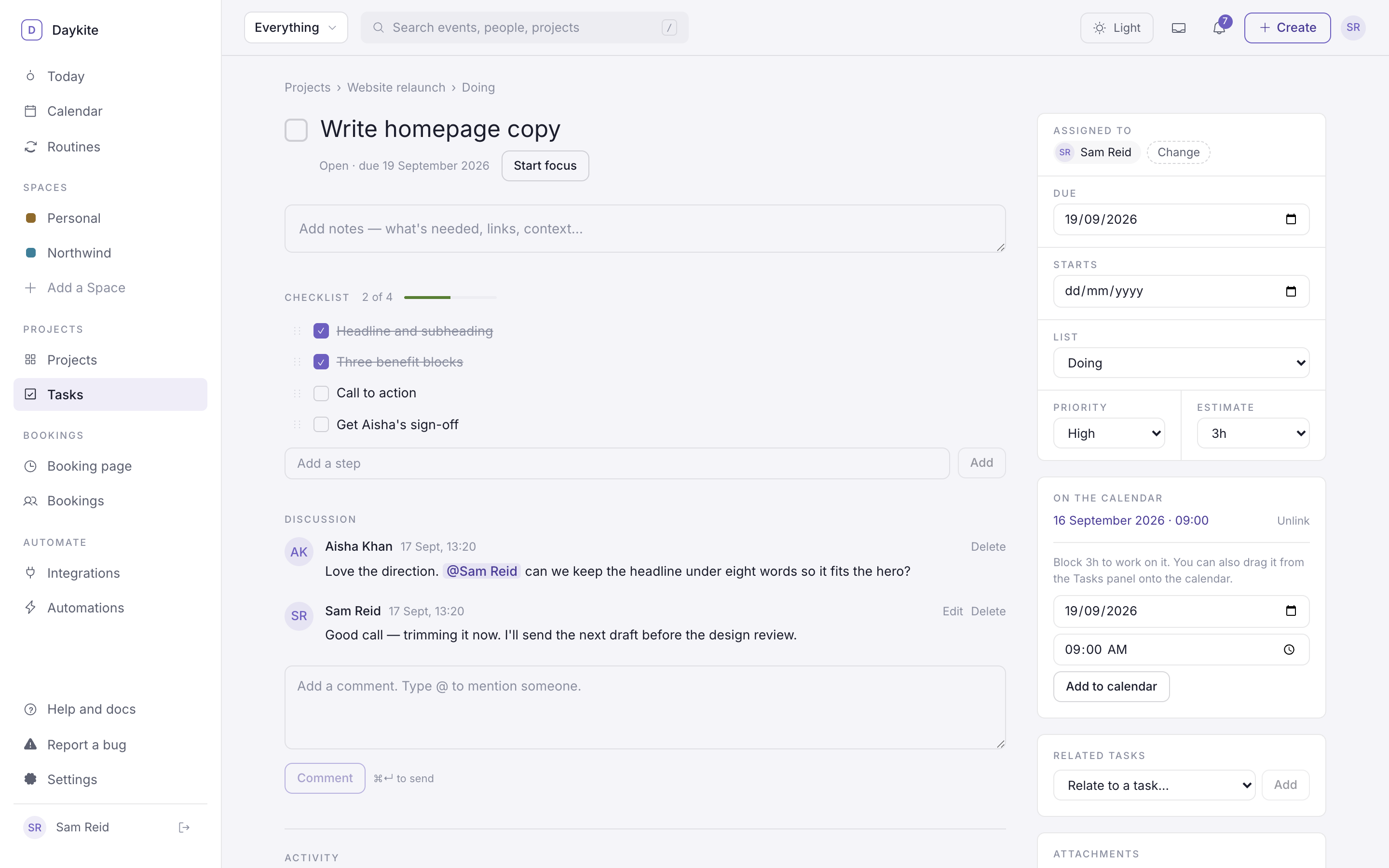
The main column
Title. Choose it to edit. The tick box beside it marks the task done — it then shows Completed … and is crossed out everywhere.
Notes. What's needed, links, context. Saves when you click away.
Checklist. Break a task into steps.
- Type into Add a step and press Enter.
- Tick steps off; the card on the board shows progress, like 2/4.
- Drag a step by its handle to reorder; Delete removes it.
Discussion. Talk about the work where the work is.
- Type a comment and send it — ⌘ Enter (or Ctrl Enter) is the shortcut.
- Type @ to mention someone. A list of the project's people appears; use ↑ ↓ and Enter to pick. They get a mention notification.
- The task's assignees hear about new comments too.
- Edit or Delete your own comments. Project leads can delete anyone's.
Activity. A running history: who created the task, renamed it, moved it between lists, assigned people, changed the due date, completed or reopened it, blocked time for it, or focused on it for how long.
The details panel
| Detail | What it does |
|---|---|
| Assigned to | One person or several. Assign / Change picks from the project's people. |
| Due | The due date. Shows as a chip on everyone's calendar who's assigned. |
| Starts | When work should begin |
| List | Moves the task to another list in the project |
| Priority | Low, Normal or High. High shows on the card. |
| Estimate | How long it'll take — the length used when you put it on the calendar or start a focus session |
Below the details:
- Start focus (under the title) — starts the focus timer for this task.
- On the calendar — time you've blocked for this task, and a way to add more. See Tasks on your calendar.
- Related tasks — link tasks that depend on or relate to each other: Relate to a task… → Add.
- Attachments — upload files up to 15 MB each: a brief, a screenshot, a contract.
- Delete task — removes the task with its checklist, discussion and attachments.
A task made from an email shows Open the email it came from ↗ — see Gmail.