How to Separate Personal and Work Calendars (and Still See Everything)
Keep work and personal calendars apart so colleagues see only what they need, while you still plan everything in one view — and never double-book yourself.
The Daykite team7 min read
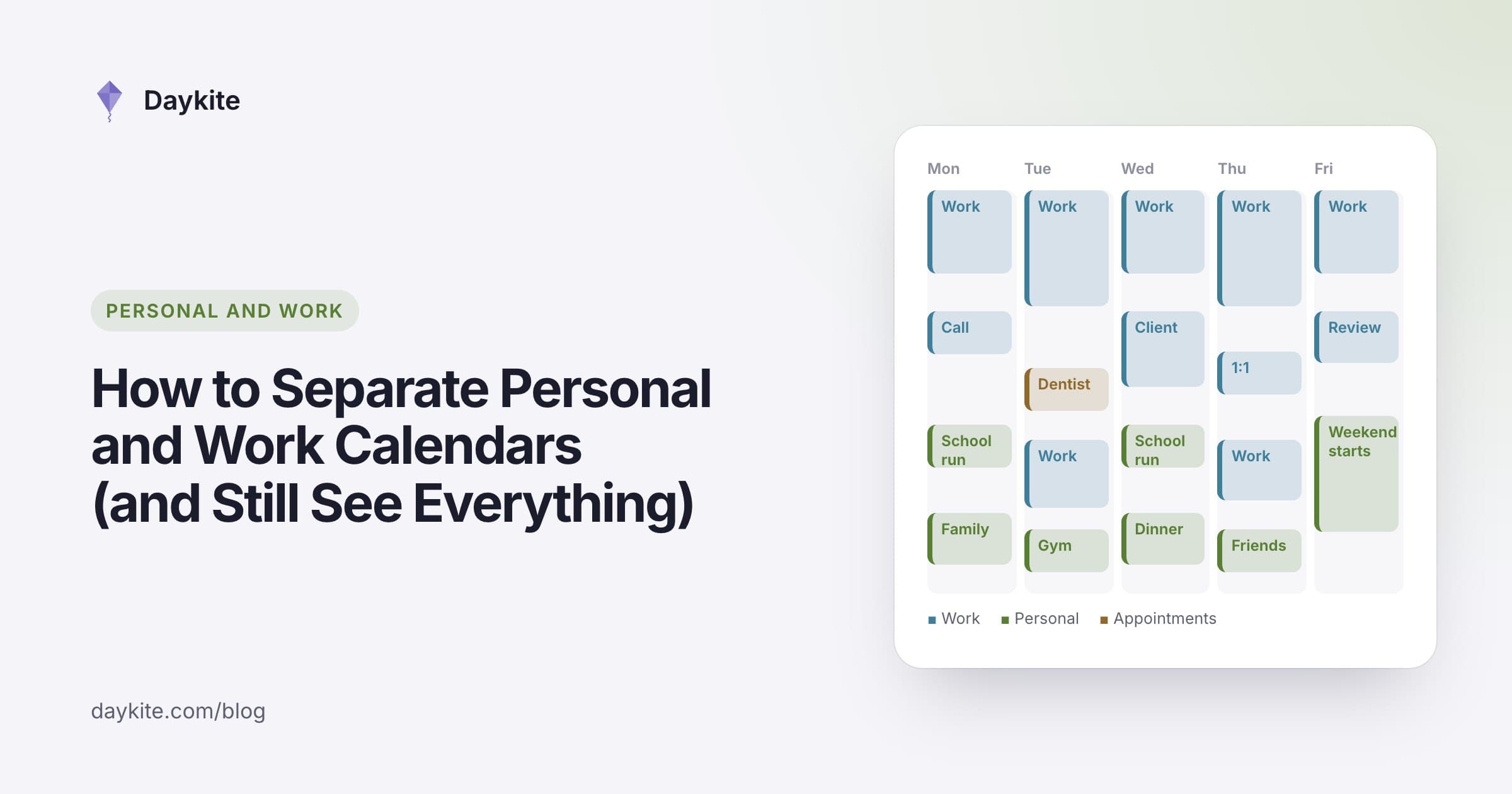
Your manager can see that you have "Dentist" at 15:00 on Thursday. Your partner can't see that you're presenting to the board at the same time. One calendar knows too much; the other not enough.
Most people end up at one of two extremes: everything in the work calendar (and colleagues seeing your therapy appointments), or two completely separate calendars (and double-booking yourself every other week). The answer is in between — separate calendars, one view. This guide shows how to set it up.
Why separate them at all?
There are three good reasons to keep work and personal calendars apart:
- Privacy. Colleagues don't need to know you have a medical appointment, a job interview elsewhere, or a parents' evening. They only need to know you're unavailable.
- Ownership. Your work calendar belongs to your employer's account. If you leave, you lose access — along with every birthday and anniversary you'd stored there.
- Boundaries. A personal calendar that isn't in your work tools is easier to close at 18:00.
And one good reason not to separate them completely: your time is one resource. A school run at 15:00 makes you unavailable at 15:00, whichever calendar it lives in. If work can't see that the time is taken, work will book it.
What goes where
A simple rule of thumb:
| Put it in… | If it's… | Examples |
|---|---|---|
| Work calendar | Work you do for your employer or clients | Meetings, focus blocks, deadlines, business travel |
| Personal calendar | Your own life | Doctor, gym, family dinners, holidays, school events |
| Both (as busy) | Personal but affects work hours | A 14:00 appointment, leaving early for a school play |
The third row is where most problems happen. The fix isn't to copy events between calendars — it's to let work see your personal calendar as busy only.
Step 1: Keep a real personal calendar
Use a calendar on your own personal account, not a sub-calendar inside your work account. That way it stays yours when jobs change, and your employer's admins can't see its contents.
If you run a business or consult for several clients, give each its own calendar too. Clients should never see each other's meetings.
Step 2: Share personal time as "busy", not details
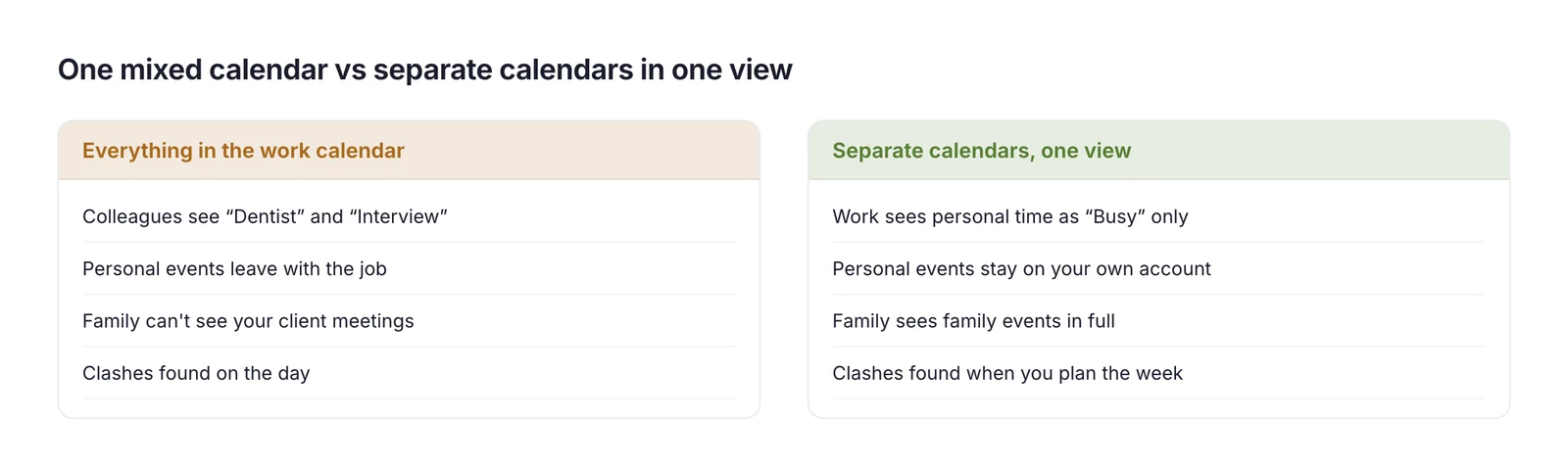
Most calendars let you share free/busy information without sharing event details. Set your personal calendar so that work colleagues see only a grey Busy block — no title, no location, no notes.
That one setting solves most double-booking. Colleagues and scheduling tools see the time is taken; nobody sees why.
Step 3: Look at everything in one view
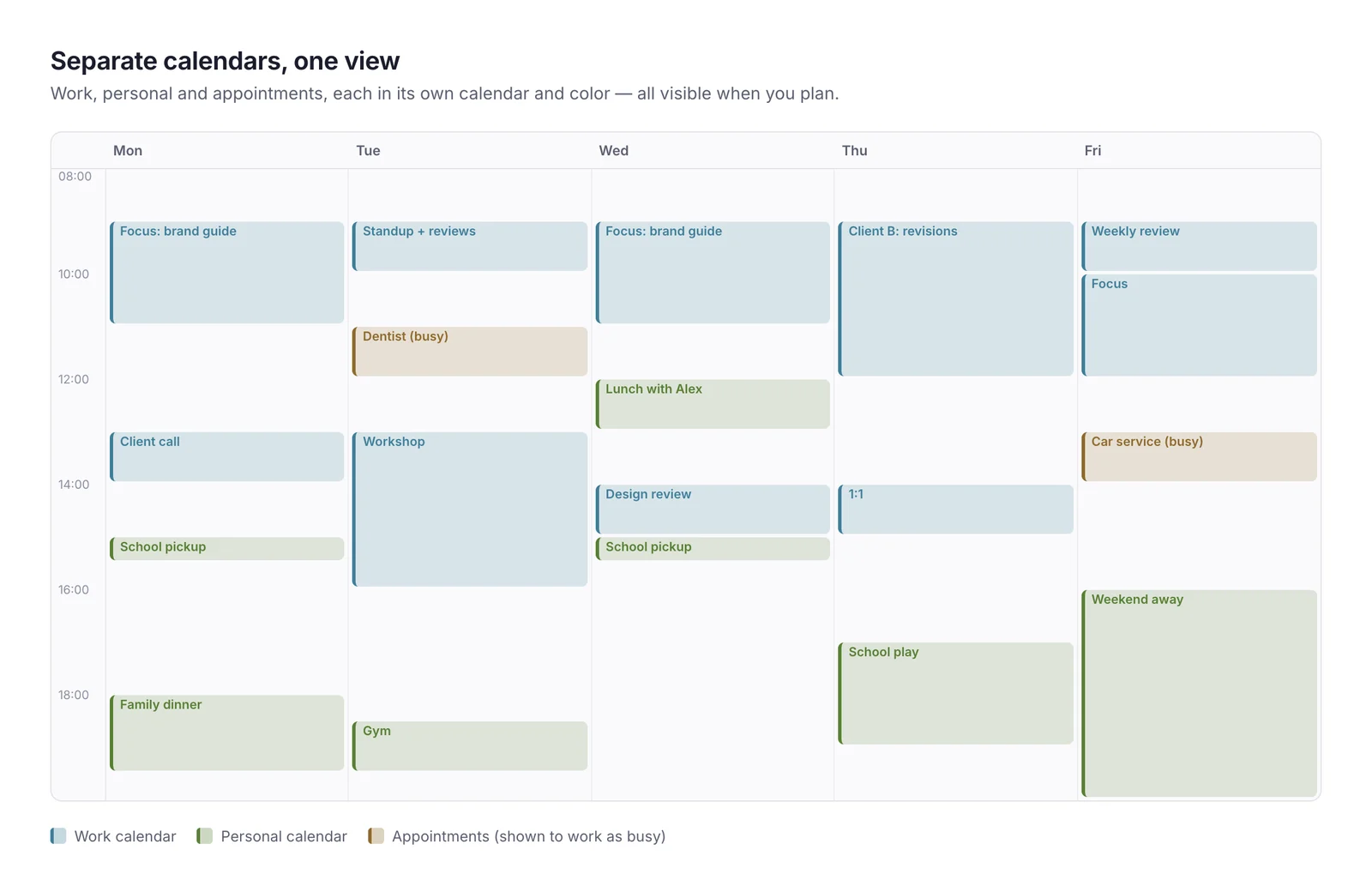
Separate calendars only work if you plan with all of them visible. When you do your weekly planning, turn every calendar on at once. You'll spot the clash between the late client call and the parents' evening before it happens, not during it.
Step 4: Decide where new events go
The most common mistake is putting events in the wrong calendar because it was the one that happened to be open. Decide your defaults once:
- New meetings and focus blocks → work calendar.
- Anything booked from your phone in the evening → personal calendar.
- Anything someone else invites you to → whichever account the invitation came to.
If your calendar app lets you choose a default calendar for new events, set it to the one you use most, and check the calendar picker before saving.
Step 5: Use color to tell them apart at a glance
Give work and personal calendars clearly different colors — for example, blue for work, green for personal, amber for appointments. When you glance at Thursday you should see instantly that the 17:00 slot is taken by something personal.
A real example: Sam's two calendars
Sam is a designer who freelances for two clients and has two children.
Before: everything lived in one calendar on Sam's main client's account. That client could see "Kids' dentist" and "Interview — Studio North". Sam's partner, meanwhile, booked a family weekend on top of a client workshop, because the shared family calendar showed nothing.
After:
- A personal calendar on Sam's own account for family, health and social plans.
- One calendar per client, so neither client ever sees the other.
- Each client sees Sam's other time as busy only — a grey block, no details.
- Sam's partner sees family events in full and client meetings as busy.
- Sam plans each Friday with everything visible at once.
The next clash — a client workshop proposed on the morning of a school play — was caught on the Friday before, when there was still time to offer another day.
Shared family calendars
Many families keep a shared calendar for school events, sports, birthdays and who's cooking. It works best as a third calendar alongside your personal and work ones:
- Everyone in the household can see and edit it, so nobody has to be the family's secretary.
- You see it next to work, so a Thursday football match is visible when someone proposes a late meeting.
- Work sees it only as busy, like your personal calendar.
Give each person's events a recognizable word at the start — Mia: swimming, Dad: dentist — so the whole family can scan a week in seconds.
If you have several work calendars
Consultants, contractors and people with a side business often have two or three work calendars from different organizations. The same rules apply, with one more:
- Never let one client see another's meetings. Share each client's time with the others as busy only.
- Choose a default for new events, so a meeting for Client A doesn't end up in Client B's calendar.
- Plan with all of them visible. Two clients who each think you're free on Wednesday afternoon will both book it.
Common mistakes
- Keeping personal events in a work account. You'll lose them when you change jobs, and admins may be able to see them.
- Sharing personal details with work. Busy-only is almost always enough.
- Not sharing personal time at all. Then work books over your life.
- Copying events between calendars by hand. Copies drift out of date. Share free/busy instead.
- Planning with one calendar hidden. That's how double bookings happen.
Taking it further
- Set working hours on your work calendar, so booking pages and scheduling tools only offer times you actually work.
- Hide a calendar when you're off. On holiday from one client? Hide that calendar for the week so it doesn't clutter your view — without changing what anyone else sees.
- Protect personal time explicitly. A recurring Family dinner block marked busy from 18:00 stops late meetings from creeping in.
Where automation helps
- Free/busy sharing keeps availability accurate across calendars without copying events.
- Booking pages that check every calendar before offering a time prevent double booking with outside people.
- Rules that keep certain hours off-limits — for example, no meetings after 17:30 — protect personal time without constant vigilance.
How Daykite helps
Daykite is built around this idea. Each part of your life is a Space — your Personal Space, a Space for each company or client, and family Spaces — and you see them all in one calendar. The strictest privacy setting always wins: a Busy only event appears to others as a grey Busy block with no title, place or guests. A client sees its own meetings in full and only Busy where the other client's call is; your partner sees school pickup and dinner, and Busy for your client meetings. See Spaces and privacy for the details.
Want to sketch how your work and personal week fit together first? Try the free Weekly Planner. And if you'd like a full method for the weekly look-ahead, see how to create a weekly planning routine.
Frequently asked questions
Should I keep my personal and work calendars separate?
Yes — keep them as separate calendars so each has its own privacy and ownership, but view them together when you plan so you don't double-book yourself.
How do I stop colleagues seeing my personal appointments?
Share your personal calendar with work as free/busy only. Colleagues see a Busy block with no title or details, and scheduling tools won't offer that time.
Can I see my work and personal calendars in one place?
Yes. Most calendar apps let you show several calendars at once, and tools like Daykite combine them into one view while keeping each one's sharing separate.
Where should I put personal appointments during work hours?
In your personal calendar, shared with work as busy. That way work can see you're unavailable without seeing what the appointment is.
Should my partner see my work calendar?
Usually as busy only. Your partner needs to know when you're unavailable, not what your client meetings are about. Share family events with them in full, and let them see work time as a Busy block.
What happens to my calendar if I leave my job?
Anything stored in your work account usually stays with your employer. That's why personal events belong in a calendar on your own account.
personal calendarwork calendarcalendar privacywork life balancedouble booking
Comments