How to Automate Meeting Reminders So Nobody Forgets
The right reminder timing for each kind of meeting, how to remind guests as well as yourself, prep reminders that work, and how to avoid notification fatigue.
The Daykite team8 min read
Almost everyone has missed a meeting they fully intended to go to. Not because they didn't care, but because the reminder came at the wrong moment: too early to act on, buried under twenty other notifications, or not at all because the event was created in a hurry. And almost everyone has been on the other side — waiting on a call for ten minutes while the other person "just saw the notification".
Good reminders are less about more reminders and more about the right ones. This guide shows how to set them up once so they work for you, your guests and your team — and how to stop them turning into noise.
What a reminder is actually for
Every reminder should answer one question: what do I need to do, and when? That gives three very different kinds:
| Kind | Purpose | Typical timing |
|---|---|---|
| Join reminder | Stop what you're doing and go | 5–15 minutes before |
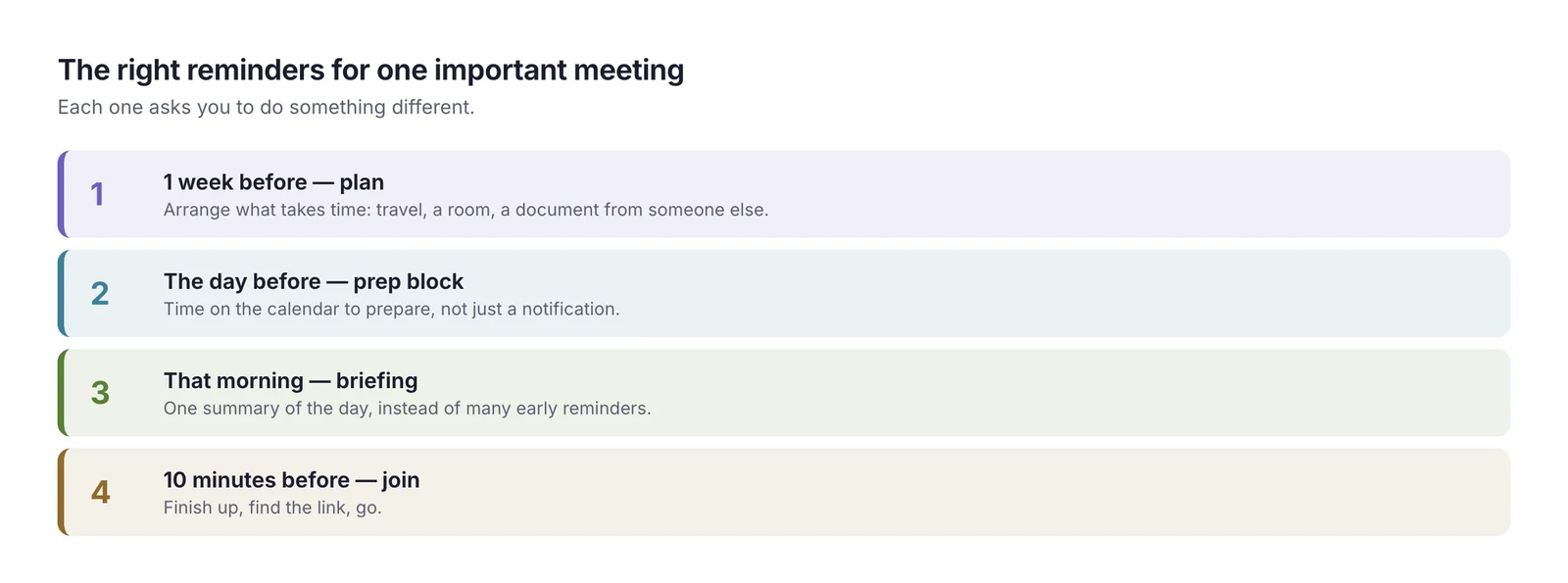
| Prep reminder | Do something before the meeting — read, prepare, print | 1 day before, or a block on the calendar |
| Plan reminder | Arrange something — travel, a babysitter, a present, a document from someone else | 1 week before |
Most people only use the first kind, set to one default for every event. That's why a reminder for a board presentation arrives ten minutes before it starts — exactly when it's too late to prepare.
Step 1: Set one sensible default
Start with a default that applies to every new event without you thinking about it. For most people, 10 minutes before is right: long enough to finish a sentence and find the link, short enough that you won't forget again before it starts.
Adjust for how you work:
- Back-to-back meetings all day? 5 minutes is often enough — you're already at your desk.
- In-person meetings in a large building? 15 minutes.
- All-day events? Usually no reminder at all. You'll see them when you open your calendar.
The default isn't meant to be perfect for every event. It's meant to catch the events you create in a rush and forget to set anything for.
Step 2: Add longer reminders only where you'll act
Next, look at the kinds of events where 10 minutes isn't enough, and set a second, earlier reminder on those — only those.
- Anything requiring preparation: a presentation, an interview you're running, a client review. 1 day before.
- Anything requiring travel: an in-person meeting across town, a flight, a hospital appointment. 1 day before, plus a join reminder that includes travel time — 45 minutes, not 10.
- Anything requiring arrangements: a dinner reservation for eight, a birthday, a visa appointment. 1 week before.
The test for any reminder: when I get this, will I do something? If the answer is "no, I'll just dismiss it", it's noise.
Step 3: Turn prep reminders into prep time
A reminder the day before says prepare for the board meeting. It doesn't give you the time to do it. For anything that takes more than a few minutes, a block on the calendar works much better than a notification:
- Interview at 14:00 Thursday → Prep: read CV and prepare questions, Thursday 13:30–14:00.
- Client review Friday at 10:00 → Prep: update the numbers, Thursday 16:00–16:45.
- Board presentation → two prep blocks during the week before.
A prep block is a reminder that also reserves the time. It shows up in your day as real work, and nobody can book over it.
If certain meetings always need prep — every consultation, every sales call — this is where automation helps: an automation can add the prep block automatically each time one is booked (more on that below).
Step 4: Remind your guests, not just yourself
Your reminders only reach you. For guests — especially people outside your organization — three things reduce no-shows far more than chasing them the morning of:
- A confirmation with a calendar file. When a guest adds the meeting to their calendar, their own calendar reminds them, in their time zone, with their own settings. This is the most reliable reminder there is.
- The time in their time zone. A surprising share of no-shows are really time-zone mistakes. Write both zones in any invitation you send by hand — 15:00 London / 10:00 New York.
- The join details in one place. A link or address in the invitation itself, not in a separate email they'll need to search for.
For high-stakes meetings — a client pitch, a candidate interview — a short personal note the day before is still worth sending by hand: "Looking forward to tomorrow at 15:00 — here's the link again." It doubles as a reminder and a courtesy.
Step 5: Stop reminders becoming noise
Reminders fail when there are too many of them. Each unnecessary notification teaches you to dismiss the next one without reading it. A few ways to keep them meaningful:
- One morning briefing instead of many early reminders. A single email or summary at 07:30 listing the day's events does the job of every "1 hour before" reminder, all at once, when you're planning your day anyway.
- Quiet hours. Reminders that arrive at 22:00 for tomorrow's 08:00 meeting shouldn't buzz your phone at night. Let them wait and appear in the morning.
- Quiet during focus blocks. A reminder for a 15:00 meeting shouldn't break a focus block that ends at 14:50.
- Separate channels. Join reminders as a phone notification; morning briefings and plan reminders as email you read once.
- Remove reminders from recurring events you never miss. Your daily standup at the same time every day probably doesn't need one.
A real example: Daniel's consultations
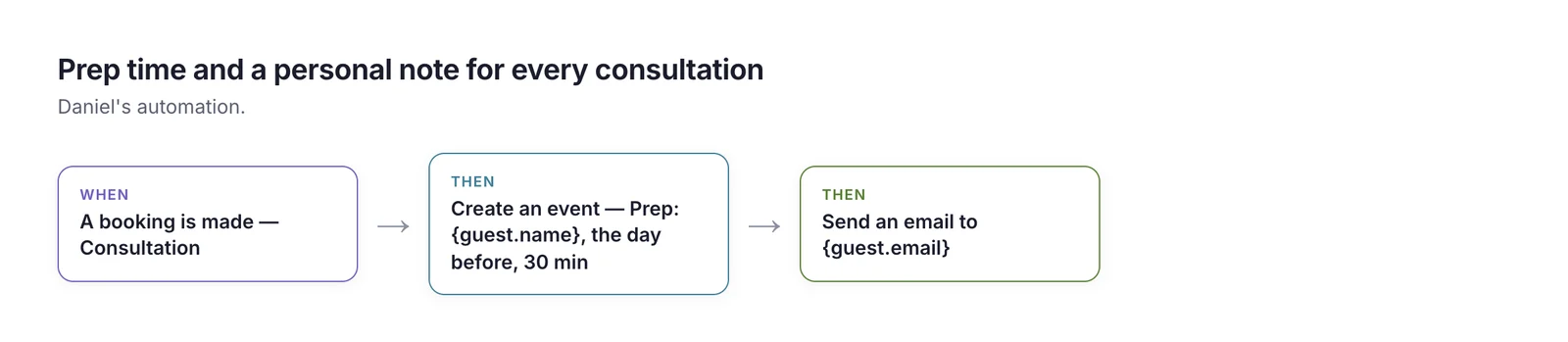
Daniel is a financial planner who meets new clients through a booking page — about eight consultations a week, plus internal meetings. Before he changed anything, two things kept going wrong: he often arrived at consultations having skimmed the client's notes in the two minutes before, and one or two clients a month simply didn't turn up.
What he set up:
- Default reminder: 10 minutes, for everything. He removed the reminder from his daily 09:00 team check-in, which he has never missed.
- An automation for every consultation booking: it creates a 30-minute Prep: {client name} block the day before, at the same time as the consultation, and sends the client a short personal welcome email with a question to think about before they meet.
- A morning briefing at 07:45, listing the day's consultations with their times.
- Quiet hours from 20:00 to 07:00, so late reminders wait for the morning.
What changed: every consultation now has prep time the day before, protected on his calendar. Clients get a confirmation with a calendar file for their own calendar, plus a personal email that makes the meeting feel real — and no-shows dropped to roughly one every couple of months. He gets fewer notifications than before, not more.
Reminders for your team
For internal meetings, most reminder problems are really meeting problems:
- People forget recurring meetings that change time often. Fix the series rather than adding reminders — see how to create recurring events that don't clutter your calendar.
- People arrive unprepared because the agenda arrives late. Send the agenda with the invitation, and ask for input a day before.
- People miss moved meetings. Moves should always send an updated invitation, not a chat message.
If your team lives in a chat tool, a reminder posted in the team channel ten minutes before a weekly meeting can help. That usually means connecting your calendar to the chat tool through a service like Zapier or Make.
Common mistakes
- One reminder time for everything. Join, prep and plan reminders need different timing.
- Relying on reminders for preparation. Put prep time on the calendar instead.
- Reminding guests only by chasing them. A calendar file in the confirmation does more.
- Too many reminders. If you dismiss most of them unread, remove some.
- Forgetting time zones. A reminder at the right time in the wrong zone is still a missed meeting.
- Reminders at night. Use quiet hours and a morning briefing instead.
How Daykite helps
In Daykite, Settings → Notifications sets a default reminder — 10 minutes before, to begin with — that's filled in on every new event, and each event's Remind me goes from When it starts to 1 week before. A daily briefing emails you the day's events, routines and tasks due at the time you choose, and quiet hours hold reminder emails overnight (anything starting in the next ten minutes still gets through), with an option to stay quiet during focus blocks too. Booking confirmations include a calendar file and the time in the guest's own time zone. And automations can add a prep block the day before every booking of a particular meeting type, or email the guest a personal note when they book — from your own address if Gmail is connected.
Frequently asked questions
How far in advance should a meeting reminder be?
For joining a meeting, 5–15 minutes before. For meetings you need to prepare for, add a second reminder or a prep block the day before. For anything you need to arrange — travel, bookings, gifts — a week before.
How do I remind guests about a meeting automatically?
Send a confirmation with a calendar file so the meeting lands in their own calendar, which reminds them with their own settings. For important meetings, add a short personal note the day before.
How do I stop getting too many calendar notifications?
Use one default reminder, add longer ones only where you'll act on them, switch to a morning briefing for the day's overview, and set quiet hours so reminders don't arrive at night or during focus time.
Do meeting reminders reduce no-shows?
Yes, especially when they reach the guest's own calendar in their own time zone and include the join details. Many no-shows are caused by time-zone confusion or a lost link rather than forgetting.
Should I set reminders for recurring meetings?
Only if you actually need them. A daily standup at the same time rarely does; a monthly meeting that's easy to forget usually does.
meeting reminderscalendar remindersnotificationsautomationno-shows
Comments